The best way to generate a PDF in Python depends on what the PDF starts from. Use fpdf2 or ReportLab to build it in code, WeasyPrint or Playwright to convert HTML, and pypdf to edit PDFs you already have.
To generate a PDF in Python with ReportLab, run pip install reportlab, build a SimpleDocTemplate and pass it your paragraphs and tables. ReportLab made a 25-row invoice in 1.1 ms in my October 2026 test.
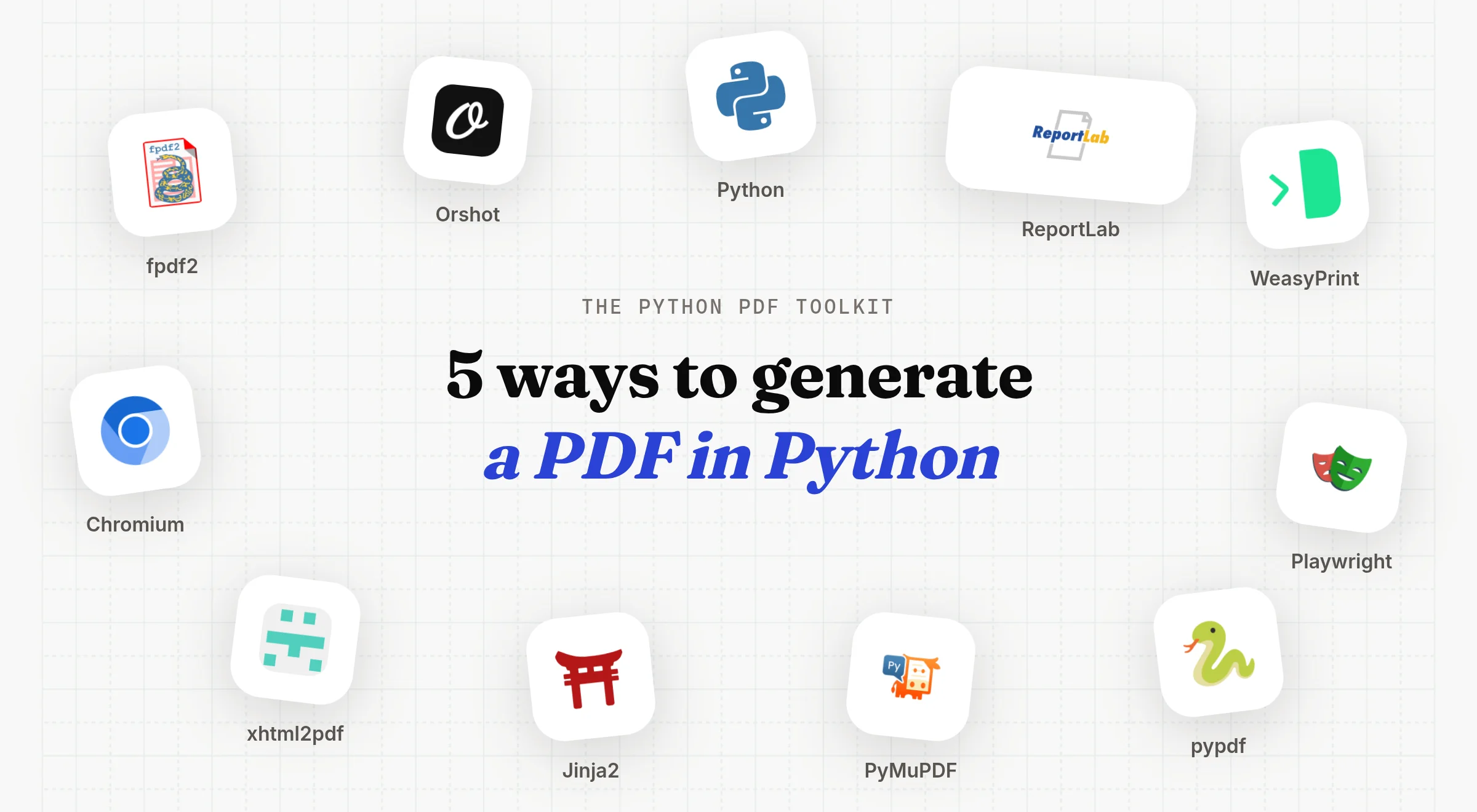
Starting Python costs more than the PDF itself. Every library stayed under 60 ms per PDF once loaded. Skip pdfkit for new code: wkhtmltopdf, the tool it wraps, was archived in January 2023.
Compare Python PDF Libraries
The Python PDF libraries worth comparing in 2026 are fpdf2, ReportLab, WeasyPrint, Playwright and xhtml2pdf. All five are free on PyPI, and only WeasyPrint and Playwright need anything outside pip.
| Library | Build the page with | Needs outside pip |
|---|---|---|
| fpdf2 | Python calls, built-in tables | Nothing |
| ReportLab | Python calls (canvas or platypus) | Nothing |
| WeasyPrint | HTML and CSS, no JavaScript | Pango 1.44 or newer |
| Playwright | HTML, CSS and JavaScript (Chromium) | A Chromium download |
| xhtml2pdf | HTML and CSS 2.1 | Nothing |
Popularity and release dates, from PyPI and pypistats.org on October 12, 2026:
| Library | Latest version | Downloads last month |
|---|---|---|
| fpdf2 | 2.8.9, Sep 29, 2026 | 16.6M |
| ReportLab | 5.0.1, Aug 20, 2026 | 66.0M |
| WeasyPrint | 70.0, Sep 8, 2026 | 31.9M |
| Playwright | 1.63.0, Sep 15, 2026 | 97.0M |
| xhtml2pdf | 0.2.23, Oct 8, 2026 | 3.6M |
Download counts include CI runs and installs pulled in by other packages. Playwright is mostly used for browser testing, so its count says little about PDFs.
How I Tested
I built one A4 invoice (title, client, 25 line items, total) in each library and opened every PDF to check it. The HTML libraries shared one Jinja2 template.
The code in this post is that code, trimmed to three rows.
- Machine. Apple M5 Pro, Python 3.14.7, October 12, 2026.
- New process. A fresh
pythonprocess per PDF, imports included. Median of 5 runs, after one untimed run to warm disk caches. - Kept warm. 20 renders in one process, median. Playwright reused one open page.
- Not tested. Docker, AWS Lambda and Windows. Setup notes come from each project's docs, read the same day.
How Fast Each Library Generates a PDF
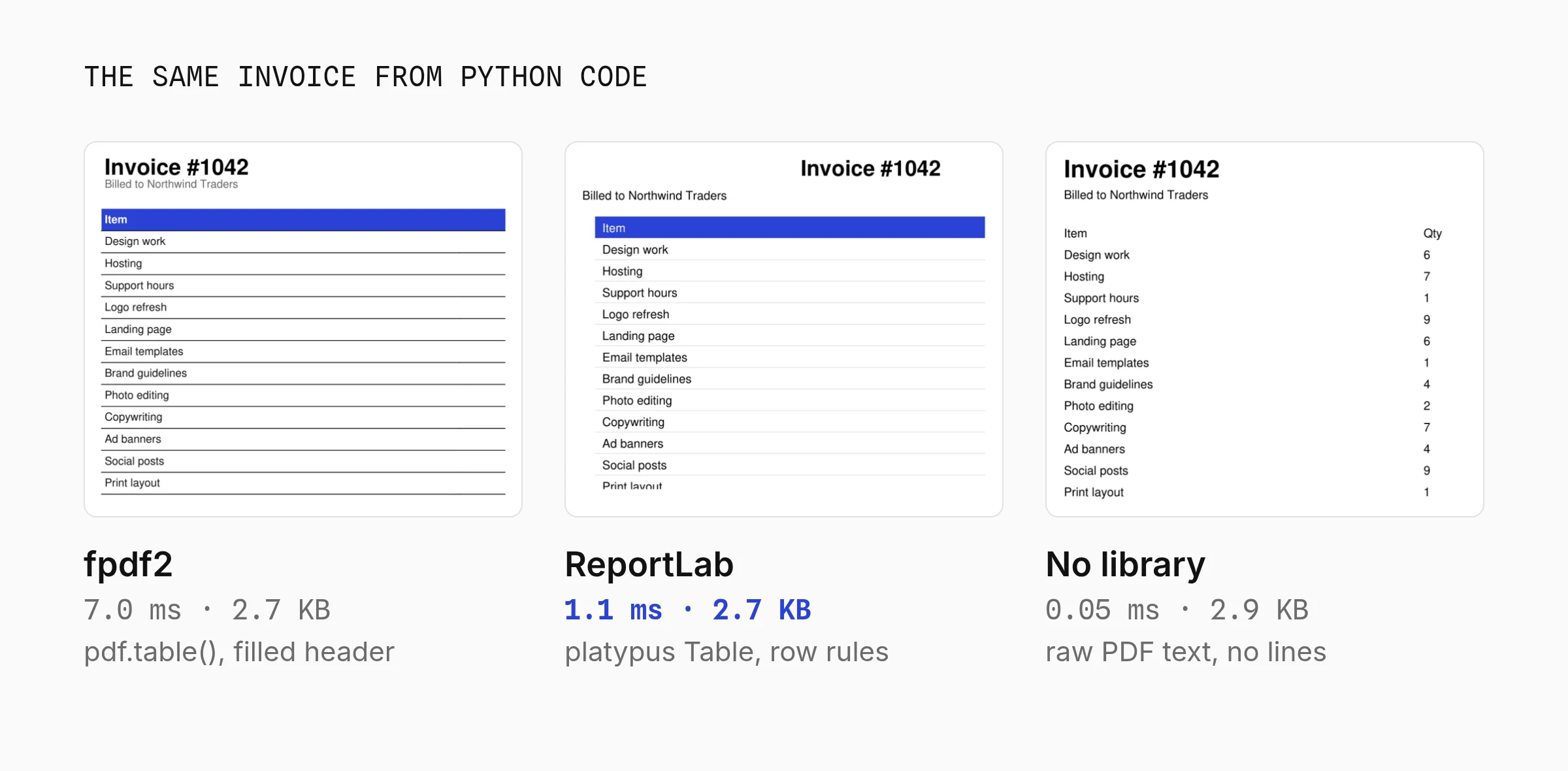
ReportLab generated the invoice in 1.1 ms once loaded, and fpdf2 in 7.0 ms. WeasyPrint was the slowest warm library at 55.8 ms, while Playwright printed it in 3.8 ms on an open Chromium page.
| Library | New process | Kept warm | File size |
|---|---|---|---|
| ReportLab | 78 ms | 1.1 ms | 2.7 KB |
| fpdf2 | 163 ms | 7.0 ms | 2.7 KB |
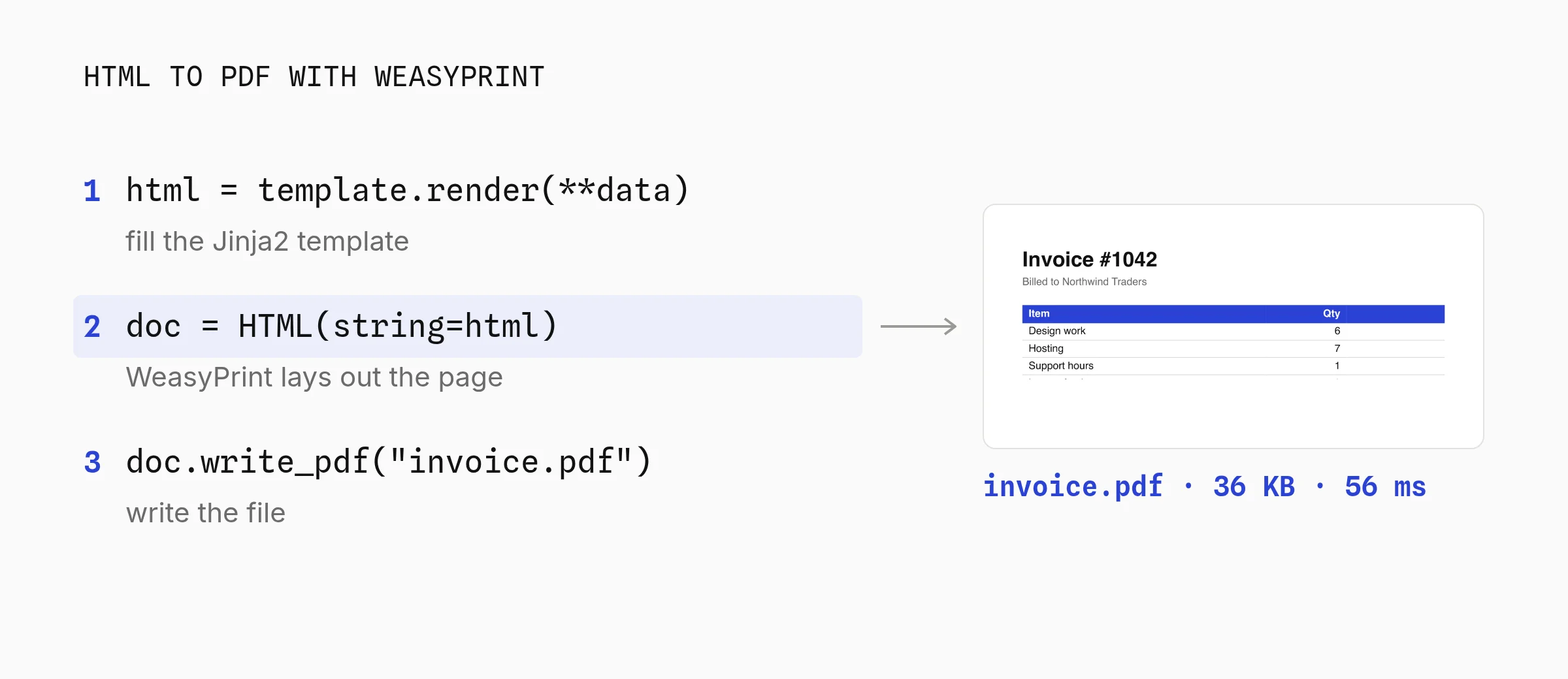
| WeasyPrint | 273 ms | 55.8 ms | 35.6 KB |
| Playwright | 318 ms | 3.8 ms | 26.2 KB |
| xhtml2pdf | 324 ms | 16.3 ms | 3.5 KB |
Speed rarely decides it. At 55.8 ms, one WeasyPrint process still makes about 64,000 PDFs an hour. What decides it is where your layout lives: in Python code, in HTML, or in a design file someone else edits.
File size is mostly fonts. ReportLab, fpdf2 and xhtml2pdf used the built-in Helvetica without embedding it. WeasyPrint and Chromium embedded the system font, so their files are about 10 times bigger.
1. Generate a PDF from Data with fpdf2 or ReportLab
fpdf2 and ReportLab write PDF bytes directly from Python, with no browser and no system packages. You describe the page in code: text, tables, images and page breaks.
Pick this if your PDF is built from data (invoices, receipts, tickets, statements) and you'd rather not write HTML.
Step 1: Make a simple PDF with fpdf2
fpdf2 is pure Python. pip install fpdf2 pulls in Pillow, fontTools and defusedxml, and that's the whole setup.
from fpdf import FPDF
from fpdf.fonts import FontFace

rows = [("Design work", 6, 40.00), ("Hosting", 7, 250.00), ("Support hours", 1, 25.00)]
total = sum(qty * price for _, qty, price in rows)

pdf = FPDF(format="A4")
pdf.add_page()
pdf.set_font("Helvetica", "B", 20)
pdf.cell(text="Invoice #1042", new_x="LMARGIN", new_y="NEXT")
pdf.set_font("Helvetica", size=10)
pdf.set_text_color(102)
pdf.cell(text="Billed to Northwind Traders", new_x="LMARGIN", new_y="NEXT")
pdf.ln(6)
pdf.set_text_color(17)

header = FontFace(emphasis="BOLD", color=255, fill_color=(43, 66, 212))
with pdf.table(col_widths=(60, 15, 25), text_align=("LEFT", "RIGHT", "RIGHT"),
               headings_style=header, borders_layout="HORIZONTAL_LINES",
               line_height=7) as table:
    table.row(["Item", "Qty", "Price"])
    for name, qty, price in rows:
        table.row([name, str(qty), f"${price:,.2f}"])
    table.row(["Total", "", f"${total:,.2f}"])

pdf.output("invoice.pdf")
pdf.table() handles row heights, borders and page breaks. Passing headings_style=None raised a ValueError in fpdf2 2.8.9, so give the header row a FontFace.
Step 2: Build long reports with ReportLab
ReportLab has two levels. The canvas places text at x and y coordinates from the bottom left. Platypus takes a list of paragraphs, tables and spacers and flows them across as many pages as it needs.
from reportlab.lib import colors
from reportlab.lib.pagesizes import A4
from reportlab.lib.styles import getSampleStyleSheet
from reportlab.lib.units import mm
from reportlab.platypus import Paragraph, SimpleDocTemplate, Spacer, Table, TableStyle

rows = [("Design work", 6, 40.00), ("Hosting", 7, 250.00), ("Support hours", 1, 25.00)]
total = sum(qty * price for _, qty, price in rows)

data = [["Item", "Qty", "Price"]] + [[n, str(q), f"${p:,.2f}"] for n, q, p in rows]
data.append(["Total", "", f"${total:,.2f}"])

table = Table(data, colWidths=[300, 60, 100])
table.setStyle(TableStyle([
    ("BACKGROUND", (0, 0), (-1, 0), colors.HexColor("#2B42D4")),
    ("TEXTCOLOR", (0, 0), (-1, 0), colors.white),
    ("LINEBELOW", (0, 1), (-1, -2), 0.5, colors.HexColor("#DDDDDD")),
    ("ALIGN", (1, 0), (-1, -1), "RIGHT"),
    ("FONTNAME", (0, -1), (-1, -1), "Helvetica-Bold"),
]))

styles = getSampleStyleSheet()
doc = SimpleDocTemplate("invoice.pdf", pagesize=A4,
                        leftMargin=18 * mm, rightMargin=18 * mm, topMargin=18 * mm)
doc.build([Paragraph("Invoice #1042", styles["Title"]),
           Paragraph("Billed to Northwind Traders", styles["Normal"]),
           Spacer(1, 12), table])
ReportLab also draws bar, line and pie charts as vectors with reportlab.graphics.charts, so a report doesn't need matplotlib. And canvas.acroForm adds fillable form fields.
Step 3: Add a Unicode font, a logo and page numbers
The built-in Helvetica only covers Latin-1. "Müller" works, but "€" in fpdf2 raises FPDFUnicodeEncodingException, and Greek, Cyrillic or CJK text fails too. Ship a TTF font with your code; both libraries embed only the characters you use.
from fpdf import FPDF

class InvoicePDF(FPDF):
    def footer(self):
        self.set_y(-15)
        self.set_font("DejaVu", size=8)
        self.cell(w=0, h=10, text=f"Page {self.page_no()} of {{nb}}", align="C")

pdf = InvoicePDF(format="A4")
pdf.add_font("DejaVu", fname="DejaVuSans.ttf")
pdf.add_page()
pdf.image("logo.png", x=170, y=10, w=25)
pdf.set_font("DejaVu", size=14)
pdf.cell(text="Rechnung für Müller GmbH · 1 250,00 €", new_x="LMARGIN", new_y="NEXT")
pdf.output("invoice.pdf")
from reportlab.lib.pagesizes import A4
from reportlab.lib.styles import ParagraphStyle
from reportlab.lib.units import mm
from reportlab.pdfbase import pdfmetrics
from reportlab.pdfbase.ttfonts import TTFont
from reportlab.platypus import Image, Paragraph, SimpleDocTemplate
pdfmetrics.registerFont(TTFont("DejaVu", "DejaVuSans.ttf"))
body = ParagraphStyle("body", fontName="DejaVu", fontSize=14)
def footer(canvas, doc):
canvas.setFont("DejaVu", 8)
canvas.drawRightString(A4[0] - 18 * mm, 10 * mm, f"Page {doc.page}")
doc = SimpleDocTemplate("invoice.pdf", pagesize=A4)
doc.build([Image("logo.png", width=25 * mm, height=25 * mm),
Paragraph("Rechnung für Müller GmbH · 1 250,00 €", body)],
onFirstPage=footer, onLaterPages=footer)fpdf2 replaces {nb} with the total page count when it saves the file. ReportLab only knows the current page, so "Page 3 of 7" needs a custom canvas that counts pages on a first pass.
What to Know Before You Pick One
- The fpdf package name trap. fpdf2 imports as
fpdf, butpip install fpdfgets you PyFPDF 1.7.2 from 2015. Tutorials that passtxt=orln=1tocell()are old: fpdf2 prints deprecation warnings for both. - fpdf2 doesn't really do HTML. Its HTML docs say the HTML 5 spec "is not supported, and neither is CSS".
write_html()reads a handful of tags. - ReportLab has a paid twin. The open source ReportLab Toolkit is BSD licensed. ReportLab PLUS, sold separately, adds the RML template language. Posts that show RML are describing the paid product.
- ReportLab's default title is centered. The
Titlestyle centers text, which is why its invoice above looks different. Copy the style and setalignment=0for left aligned.
- Pure Python: nothing to install at the OS level, so it runs in slim Docker images and Lambda
- 1 to 7 ms per invoice once loaded, and 2.7 KB files
- ReportLab flows long tables across pages and draws vector charts
- Every layout change is a code change and a deploy
- No CSS, so styling a branded design takes a lot of code
- Non-Latin text needs a TTF font you ship with your code (step 3 shows how)
Best for: fpdf2 suits receipts, tickets, labels and certificates; ReportLab suits multi-page reports and statements with charts, both built from data with no browser.
2. Convert HTML to PDF in Python with WeasyPrint
To convert HTML to PDF in Python, pip install weasyprint and call HTML(string=html).write_pdf("out.pdf"). WeasyPrint is its own layout engine, not a browser, and it supports CSS paged media like page counters and running footers.
Pick this if you already render HTML in Django, Flask or FastAPI, or your team would rather style the PDF with CSS.
Step 1: Convert HTML with WeasyPrint
from weasyprint import HTML

html = """
<style>
  @page { size: A4; margin: 18mm;
          @bottom-right { content: "Page " counter(page) " of " counter(pages); } }
  body { font-family: Helvetica, Arial, sans-serif; }
</style>
<h1>Invoice #1042</h1>
<p>Billed to Northwind Traders</p>
"""

HTML(string=html).write_pdf("invoice.pdf")
HTML("https://example.com/invoice/1042") works too, if the page is already online. WeasyPrint fetches its CSS and images.
Step 2: Fill the HTML from a Jinja2 template
Hard-coding HTML in a string gets old fast. Keep the layout in a Jinja2 file and pass it the data:
from jinja2 import Environment, FileSystemLoader
from weasyprint import HTML

rows = [("Design work", 6, 40.00), ("Hosting", 7, 250.00), ("Support hours", 1, 25.00)]
total = sum(qty * price for _, qty, price in rows)

env = Environment(loader=FileSystemLoader("templates"), autoescape=True)
template = env.get_template("invoice.html")
html = template.render(invoice=1042, client="Northwind Traders", rows=rows, total=total)

HTML(string=html, base_url="templates").write_pdf("invoice.pdf")<!doctype html>
<html><head><meta charset="utf-8"><style>
@page { size: A4; margin: 18mm; }
body { font-family: Helvetica, Arial, sans-serif; font-size: 10pt; color: #111; }
.meta { color: #666; margin-bottom: 6mm; }
table { width: 100%; border-collapse: collapse; }
th { background: #2B42D4; color: #fff; text-align: left; padding: 5px 8px; }
td { border-bottom: 1px solid #ddd; padding: 4px 8px; }
.r { text-align: right; }
</style></head><body>
<h1>Invoice #{{ invoice }}</h1>
<div class="meta">Billed to {{ client }}</div>
<table>
<tr><th>Item</th><th class="r">Qty</th><th class="r">Price</th></tr>
{% for name, qty, price in rows %}
<tr><td>{{ name }}</td><td class="r">{{ qty }}</td>
<td class="r">${{ "{:,.2f}".format(price) }}</td></tr>
{% endfor %}
<tr><td><b>Total</b></td><td></td><td class="r"><b>${{ "{:,.2f}".format(total) }}</b></td></tr>
</table>
</body></html>Keep autoescape=True so a client name with < or & doesn't break the markup. And pass base_url, so relative paths to images and stylesheets resolve.
Step 3: Switch to Playwright when the page needs a browser
WeasyPrint never runs JavaScript, so Chart.js charts come out blank. Playwright for Python prints the same HTML in real Chromium:
pip install playwright
playwright install chromium
from playwright.sync_api import sync_playwright
# html comes from template.render(...) in step 2
with sync_playwright() as p:
browser = p.chromium.launch()
page = browser.new_page()
page.set_content(html, wait_until="networkidle")
page.pdf(path="invoice.pdf", format="A4", print_background=True)
browser.close()Launch the browser once and reuse the page. In my test each extra PDF took 3.8 ms on an open page, while a fresh process with a new Chromium took 318 ms.
playwright install chromium downloaded 554 MB of browser files to my disk (Chromium plus its headless shell), on top of a 135 MB Python package.
Headless renders only use the shell, so in Docker playwright install --only-shell chromium skips the full browser.
Which Python HTML to PDF Library Should You Use?
Use WeasyPrint for HTML and CSS you control, and Playwright when the page needs JavaScript or must match Chrome exactly. xhtml2pdf suits simple layouts where you can only install pure Python packages. Skip pdfkit for new code.
| Library | Renders with | Runs JavaScript | Install |
|---|---|---|---|
| WeasyPrint | Its own engine, CSS paged media | No | pip plus Pango |
| Playwright | Chromium | Yes | pip plus 554 MB of browser |
| xhtml2pdf | ReportLab, CSS 2.1 | No | pip only |
| pdfkit | wkhtmltopdf (old Qt WebKit) | Partly | Deprecated, archived 2023 |
On the same invoice template, warm renders took 55.8 ms in WeasyPrint, 16.3 ms in xhtml2pdf and 3.8 ms in Playwright. xhtml2pdf also warned that it ignores border-collapse, which shows in the header row of its output.
Fix Common HTML to PDF Problems
Most HTML to PDF problems in Python come from print rules, not from your code.
- WeasyPrint can't find Pango. WeasyPrint 70 needs Pango 1.44 or newer from the OS. On Debian 11 or newer install
libpango-1.0-0 libpangoft2-1.0-0 libharfbuzz-subset0(Ubuntu also needslibharfbuzz0b). On macOS,brew install weasyprint. - Flexbox and grid look off in WeasyPrint. Its API docs say both work "for simple" cases, and list subgrid and
repeat(auto-fill, ...)as unsupported or untested. - Backgrounds disappear in Playwright. Chromium drops background colors when printing unless you pass
print_background=True. - The PDF looks different from the screen. Playwright prints with
printCSS. Callpage.emulate_media(media="screen")first. - Rows split across pages. Add
tr { break-inside: avoid; }to your CSS. It works in both.
To preview how a page prints before you write any Python, paste it into the free HTML to PDF converter. There's no sign-up.
- Style the PDF with the HTML and CSS your team already writes
- WeasyPrint does page counters, running headers and PDF/A without a browser
- Playwright matches what Chrome shows, JavaScript charts included
- WeasyPrint needs Pango from the OS and runs no JavaScript
- Playwright adds 554 MB of browser files and a browser's memory per worker
- Print CSS is its own skill: page breaks, margins and fonts need tuning
Best for: WeasyPrint suits invoices and reports from HTML you control; Playwright suits pages with JavaScript charts or modern CSS that must match Chrome.
3. Generate PDFs from a Template in Python
To generate PDFs from a template in Python, design the layout once, mark the fields that change, and send only data from your code. A hosted API like Orshot keeps the design out of your repository.
Pick this if someone other than a developer owns the layout (certificates, branded invoices, reports, quotes), or every design tweak costs you a deploy.
Step 1: Design the template in Orshot Studio
Orshot is an API that turns design templates into PDFs, images and videos. You design in Orshot Studio, which works like Figma, and every layer you mark as dynamic becomes an API parameter. (Disclosure: I built Orshot.)
Below is the course certificate I used. Click a layer to see its parameter name, or copy the template into your own workspace.
Step 2: Generate the PDF from Python with one API call
Your code sends the template ID and the values, and gets a hosted PDF link back in data.content. No fonts, no Pango, no Chromium in your deploy.
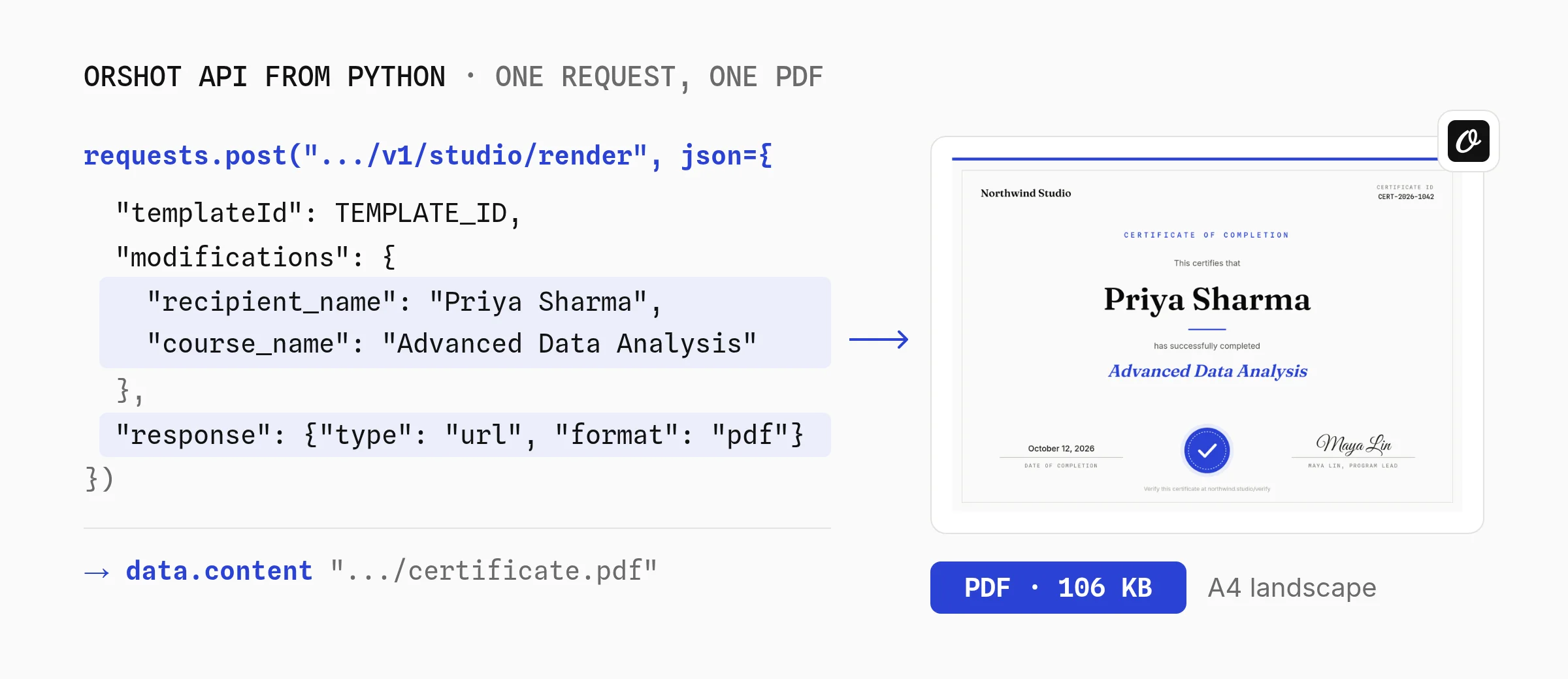
Each key is a layer's parameter name from step 1.
import os
import requests

res = requests.post(
    "https://api.orshot.com/v1/studio/render",
    headers={"Authorization": f"Bearer {os.environ['ORSHOT_API_KEY']}"},
    json={
        "templateId": "YOUR_TEMPLATE_ID",
        "modifications": {
            "recipient_name": "Priya Sharma",
            "course_name": "Advanced Data Analysis",
            "completion_date": "October 12, 2026",
            "certificate_id": "CERT-2026-1042",
        },
        "response": {"type": "url", "format": "pdf"},
    },
    timeout=60,
)
res.raise_for_status()
print(res.json()["data"]["content"])  # https://storage.orshot.com/.../certificate.pdf
The same call with the orshot package from PyPI, plus print settings.
import os
import orshot

client = orshot.Orshot(os.environ["ORSHOT_API_KEY"])

result = client.render_from_studio_template({
    "template_id": "YOUR_TEMPLATE_ID",
    "modifications": {"recipient_name": "Priya Sharma", "course_name": "Advanced Data Analysis"},
    "response": {"type": "url", "format": "pdf"},
    "pdf_options": {"dpi": 300, "color_mode": "cmyk"},
})
Long documents can render in the background. Pass your own ID as metadata and it comes back in the webhook.
res = requests.post(
    "https://api.orshot.com/v1/studio/render",
    headers={"Authorization": f"Bearer {os.environ['ORSHOT_API_KEY']}"},
    json={
        "templateId": "YOUR_TEMPLATE_ID",
        "modifications": {"recipient_name": "Priya Sharma"},
        "response": {"mode": "async", "type": "url", "format": "pdf"},
        "webhook_url": "https://acme.com/hooks/orshot",
        "metadata": "order-8412",
    },
    timeout=30,
)
# Your webhook receives:
# {"event": "render_job.finished",
#  "job": {"id": 1204, "status": "succeeded", "finished": true,
#          "result": {...}, "metadata": "order-8412"}}
I rendered the certificate template with exactly these values on October 12, 2026. The PDF came back at 106 KB as a real A4 landscape page with selectable text and embedded fonts, script signature included.
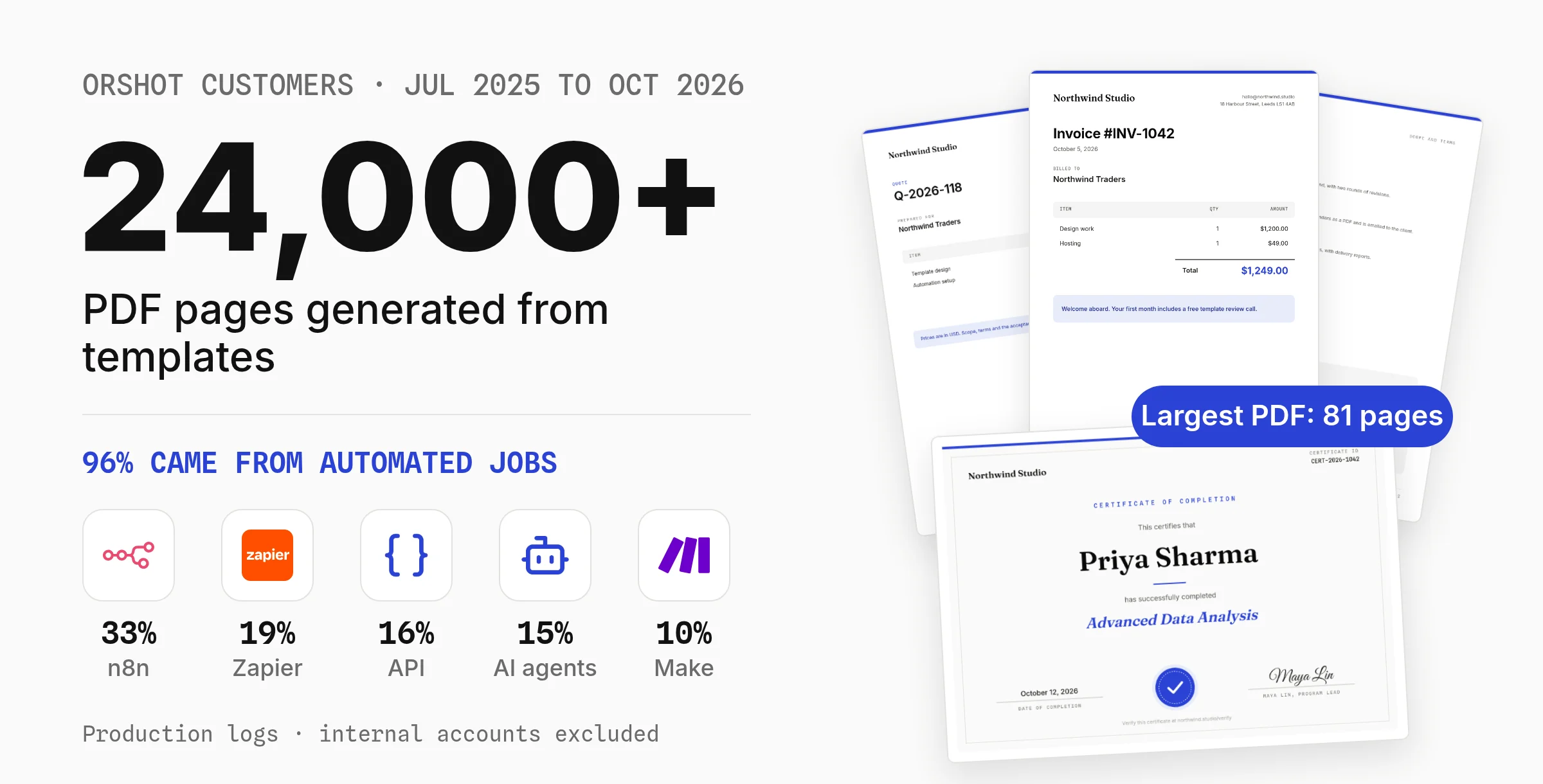
Orshot customers have rendered more than 24,000 PDF pages since July 2025, and 96% of them came from automated jobs rather than someone clicking export. n8n, Zapier, the REST API and AI agents send most of them.
What's built in that you'd otherwise write yourself:
- Multi-page and long content. Fill every page in one call with
page2@fieldkeys, or let a long text layer flow onto new pages. - Print settings.
pdfOptionssets margins, DPI, CMYK and image compression. - Hosting. Files are kept for at least a year, or on paid plans renders go to your own S3, R2, Google Drive or Dropbox.
- Other formats from the same design. Change
formattopngand the certificate becomes a LinkedIn share image.
Full options are in the PDF generation docs and the Python SDK reference.
Orshot solved every challenge with clarity and precision, and the entire PDF automation came together flawlessly.
I've never felt more confident in a technical build. Highly recommend Orshot.
 David FurlongFounder, Return to Centre
When a Template API Is the Wrong Choice
- A designer changes the layout without a deploy
- No fonts, Pango or Chromium in your app: one HTTP call
- Hosted links, print settings and multi-page fills built in
- A network round trip, so it suits queues and background jobs more than a synchronous click
- Paid per page after 100 free credits a month, while ReportLab costs nothing per page
- You send data, not HTML, so arbitrary HTML belongs in part 2
Orshot pricing, checked October 12, 2026: 100 free credits a month (1 credit = 1 PDF page), then $39 a month for 1,500 pages, $160 for 20,000 or $349 for 75,000.
Orshot fits PDFs that run on a schedule or a trigger, like a Google Sheets invoice generator that saves each PDF to Drive. The automated invoice generation guide covers batch runs.
Best for: Orshot suits PDFs a designer owns that run on a schedule or trigger, called from Python, n8n, Make, Zapier or an AI agent.
4. Merge or Fill Existing PDFs with pypdf
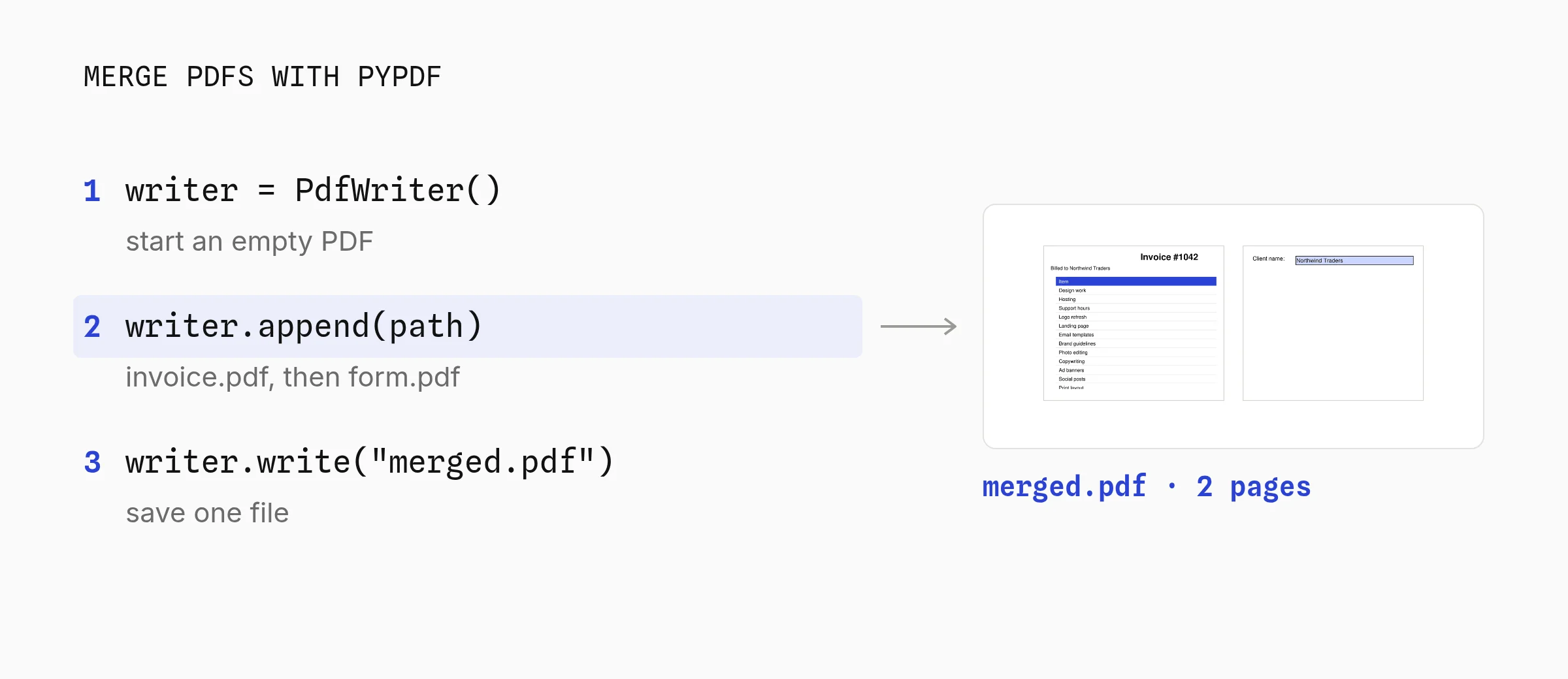
pypdf (126M downloads last month, BSD licensed) merges, splits, crops and fills PDFs in pure Python. pypdf doesn't lay out new pages, so pair it with a generator above.
Pick this if the PDF already exists and you need to merge files, fill a form, or split pages out.
from pypdf import PdfWriter

writer = PdfWriter()
for path in ["invoice.pdf", "form.pdf"]:
    writer.append(path)
writer.write("merged.pdf")
from pypdf import PdfWriter
writer = PdfWriter(clone_from="form.pdf")
writer.update_page_form_field_values(
writer.pages[0], {"client_name": "Northwind Traders"}, auto_regenerate=False
)
writer.write("filled.pdf")I ran both with pypdf 6.20.0 on October 12, 2026. The merge produced a two-page file, and reading filled.pdf back returned "Northwind Traders" for the client_name field.
PyMuPDF does the same jobs and more, and renders pages to images. PyMuPDF is AGPL-3.0 or a paid license, so check the license section below before shipping it in a closed product.
Best for: pypdf suits merging generated PDFs with existing files, filling form fields and splitting pages, never laying out new ones.
5. Generate a PDF without External Libraries
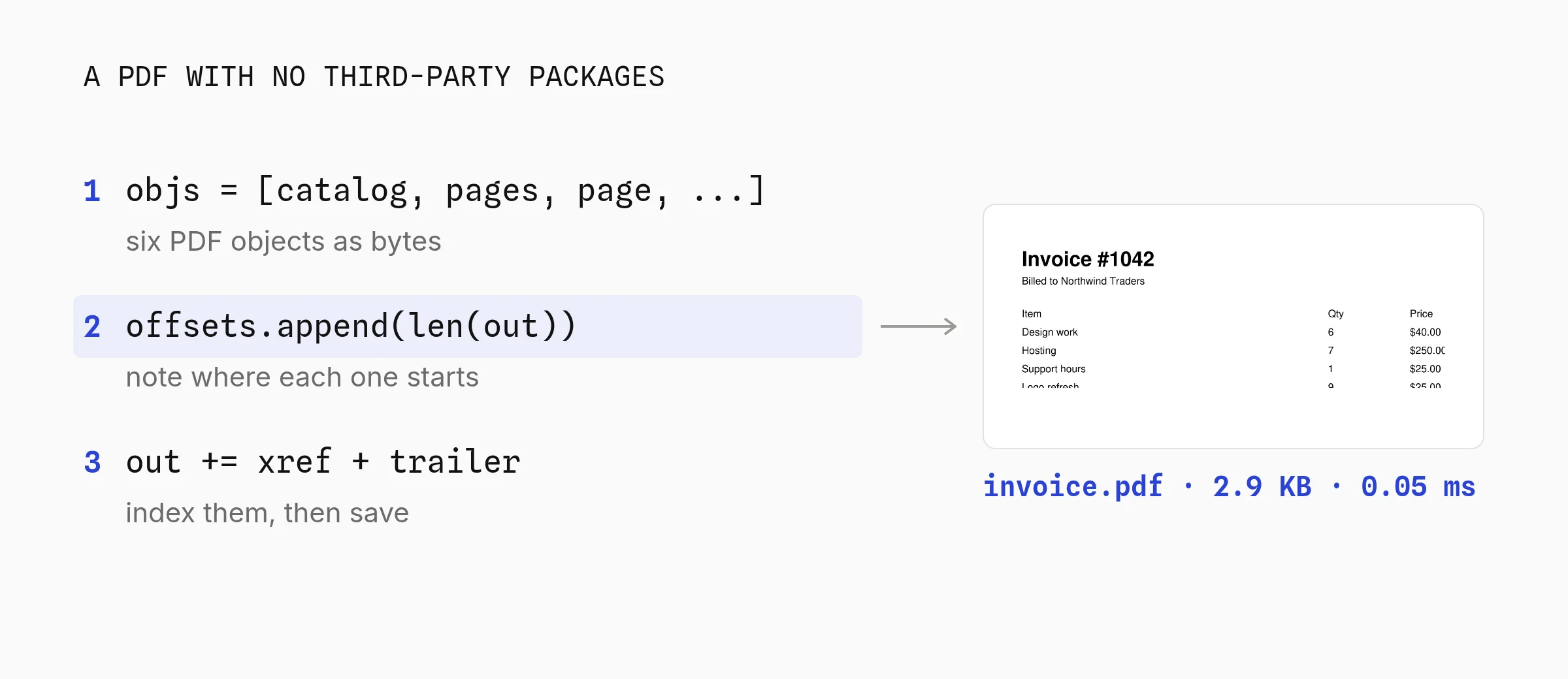
Python's standard library has no PDF module. You can still write a valid PDF by hand: a few objects as bytes, a cross-reference table and a trailer. The invoice above took 35 lines and 0.05 ms.
Pick this if you can't install packages (a locked-down server, an embedded device) and the PDF is plain text.
rows = [("Design work", 6, 40.00), ("Hosting", 7, 250.00), ("Support hours", 1, 25.00)]
total = sum(qty * price for _, qty, price in rows)

def esc(s):
    return s.replace("\\", "\\\\").replace("(", "\\(").replace(")", "\\)")

lines = ["BT /F2 20 Tf 50 780 Td (Invoice #1042) Tj ET",
         "BT /F1 10 Tf 50 762 Td (Billed to Northwind Traders) Tj ET"]
y = 730
for name, qty, price in [("Item", "Qty", "Price")] + [(n, str(q), f"${p:,.2f}") for n, q, p in rows]:
    lines.append(f"BT /F1 10 Tf 50 {y} Td ({esc(name)}) Tj 300 0 Td ({qty}) Tj 80 0 Td ({esc(price)}) Tj ET")
    y -= 18
lines.append(f"BT /F2 10 Tf 50 {y - 4} Td (Total) Tj 380 0 Td ({esc(f'${total:,.2f}')}) Tj ET")
stream = "\n".join(lines).encode("latin-1")

objs = [b"<< /Type /Catalog /Pages 2 0 R >>",
        b"<< /Type /Pages /Kids [3 0 R] /Count 1 >>",
        b"<< /Type /Page /Parent 2 0 R /MediaBox [0 0 595 842] /Contents 4 0 R "
        b"/Resources << /Font << /F1 5 0 R /F2 6 0 R >> >> >>",
        b"<< /Length %d >>\nstream\n" % len(stream) + stream + b"\nendstream",
        b"<< /Type /Font /Subtype /Type1 /BaseFont /Helvetica /Encoding /WinAnsiEncoding >>",
        b"<< /Type /Font /Subtype /Type1 /BaseFont /Helvetica-Bold /Encoding /WinAnsiEncoding >>"]

out = bytearray(b"%PDF-1.4\n")
offsets = []
for i, obj in enumerate(objs, 1):
    offsets.append(len(out))
    out += b"%d 0 obj\n" % i + obj + b"\nendobj\n"
xref = len(out)
out += b"xref\n0 %d\n0000000000 65535 f \n" % (len(objs) + 1)
out += b"".join(b"%010d 00000 n \n" % o for o in offsets)
out += b"trailer\n<< /Size %d /Root 1 0 R >>\nstartxref\n%d\n%%%%EOF\n" % (len(objs) + 1, xref)

with open("invoice.pdf", "wb") as f:
    f.write(out)
The limits show up fast. Text must fit Latin-1 with the 14 built-in fonts, nothing wraps, and you place every line yourself. Keep the /Encoding /WinAnsiEncoding entries, or accented letters like é print as the wrong glyph.
For anything longer than a page, pip install fpdf2 is worth the roughly 40 MB it installs with Pillow and fontTools.
Verdict: The standard library works for a one-page text PDF where installs are banned; anywhere else, fpdf2 or ReportLab saves you the byte counting.
Return the PDF from Flask, FastAPI or Django
To return a generated PDF from a Python web app, build it in memory and send the bytes with application/pdf. Every library above can skip the file on disk.
- fpdf2:
pdf.output()with no file name returns abytearray. - ReportLab: pass a
BytesIOtoSimpleDocTemplateand readbuffer.getvalue(). - WeasyPrint:
HTML(string=html).write_pdf()returnsbytes. - Playwright:
page.pdf()withoutpathreturnsbytes.
from io import BytesIO
from flask import Flask, send_file
from weasyprint import HTML

app = Flask(__name__)

@app.get("/invoices/<int:invoice_id>.pdf")
def invoice_pdf(invoice_id):
    # template, rows and total come from part 2, step 2
    html = template.render(invoice=invoice_id, client="Northwind Traders", rows=rows, total=total)
    pdf = HTML(string=html).write_pdf()  # bytes, nothing written to disk
    return send_file(BytesIO(pdf), mimetype="application/pdf",
                     download_name=f"invoice-{invoice_id}.pdf")
from fastapi import FastAPI, Response
from weasyprint import HTML
app = FastAPI()
@app.get("/invoices/{invoice_id}.pdf")
def invoice_pdf(invoice_id: int): # plain def: FastAPI runs it in a thread pool
html = template.render(invoice=invoice_id, client="Northwind Traders", rows=rows, total=total)
pdf = HTML(string=html).write_pdf()
return Response(pdf, media_type="application/pdf",
headers={"Content-Disposition": f'inline; filename="invoice-{invoice_id}.pdf"'})from django.http import HttpResponse
from django.template.loader import render_to_string
from weasyprint import HTML
def invoice_pdf(request, invoice_id):
html = render_to_string("invoice.html", {"invoice": invoice_id, "client": "Northwind Traders"})
pdf = HTML(string=html, base_url=request.build_absolute_uri("/")).write_pdf()
response = HttpResponse(pdf, content_type="application/pdf")
response["Content-Disposition"] = f'attachment; filename="invoice-{invoice_id}.pdf"'
return responseI ran all three with their test clients on October 12, 2026, and each returned a 200 with a valid PDF. In Flask, add as_attachment=True to send_file to force a download instead of opening the PDF in the browser.
PDF rendering blocks the worker, so keep FastAPI handlers as plain def, not async def. For hundreds of PDFs at once, move the work to a queue like Celery or RQ and email or store the result.
ReportLab vs fpdf2: Which to Use
Use fpdf2 for short documents you want to write quickly: it has a table helper, readable docs and a small API. Use ReportLab for long reports, since platypus flows content across pages and draws charts.
| Question | fpdf2 | ReportLab |
|---|---|---|
| Time per invoice, warm | 7.0 ms | 1.1 ms |
| Long content | table() breaks pages | Platypus flows any content |
| Charts and forms | Images only | Vector charts and AcroForm fields |
| License | LGPL-3.0 | BSD |
Both make 2.7 KB files with built-in fonts and install with pip alone.
Check the License Before You Ship
Most Python PDF libraries are permissively licensed, but two common ones need a paid license for closed source SaaS. That matters more than speed if you sell software.
| License | Libraries | In a closed source app |
|---|---|---|
| BSD, MIT or Apache-2.0 | ReportLab, WeasyPrint, Playwright, xhtml2pdf, pypdf, pdfplumber | Use freely and keep the license notices |
| LGPL-3.0 | fpdf2 | Fine to import; changes to fpdf2 itself fall under the LGPL |
| AGPL-3.0 or commercial | PyMuPDF, borb | The AGPL covers apps used over a network, so buy the license |
borb's PyPI page says commercial use needs a paid license, "especially" for paid PDF services such as PDF generation in cloud apps.
PyMuPDF's README calls the AGPL build free for open source and points proprietary apps to Artifex. This isn't legal advice.
pdfkit, xhtml2pdf, PyMuPDF and Other Names You'll See
Older tutorials and Stack Overflow answers name libraries that are deprecated or do something else. Here is where each one stands as of October 12, 2026.
- pdfkit wraps the wkhtmltopdf command line tool. Its README says it is deprecated "to match the wkhtmltopdf project status". wkhtmltopdf's repository was archived on January 2, 2023, and its last release, 0.12.6, came out in June 2020. It still had 3.0M downloads last month.
- xhtml2pdf converts HTML to PDF in pure Python on top of ReportLab, with CSS 2.1. In my test xhtml2pdf logged that it ignores
border-collapse, so keep layouts simple. - pyppeteer now says it is unmaintained and points to Playwright.
- PyMuPDF (imported as
pymupdf;fitzis the old name and now prints a deprecation warning) reads, edits and renders PDFs. It's AGPL-3.0 or commercial. - pdfplumber extracts text and tables from PDFs. It reads PDFs; it doesn't create them.
Pick the Right Python PDF Library
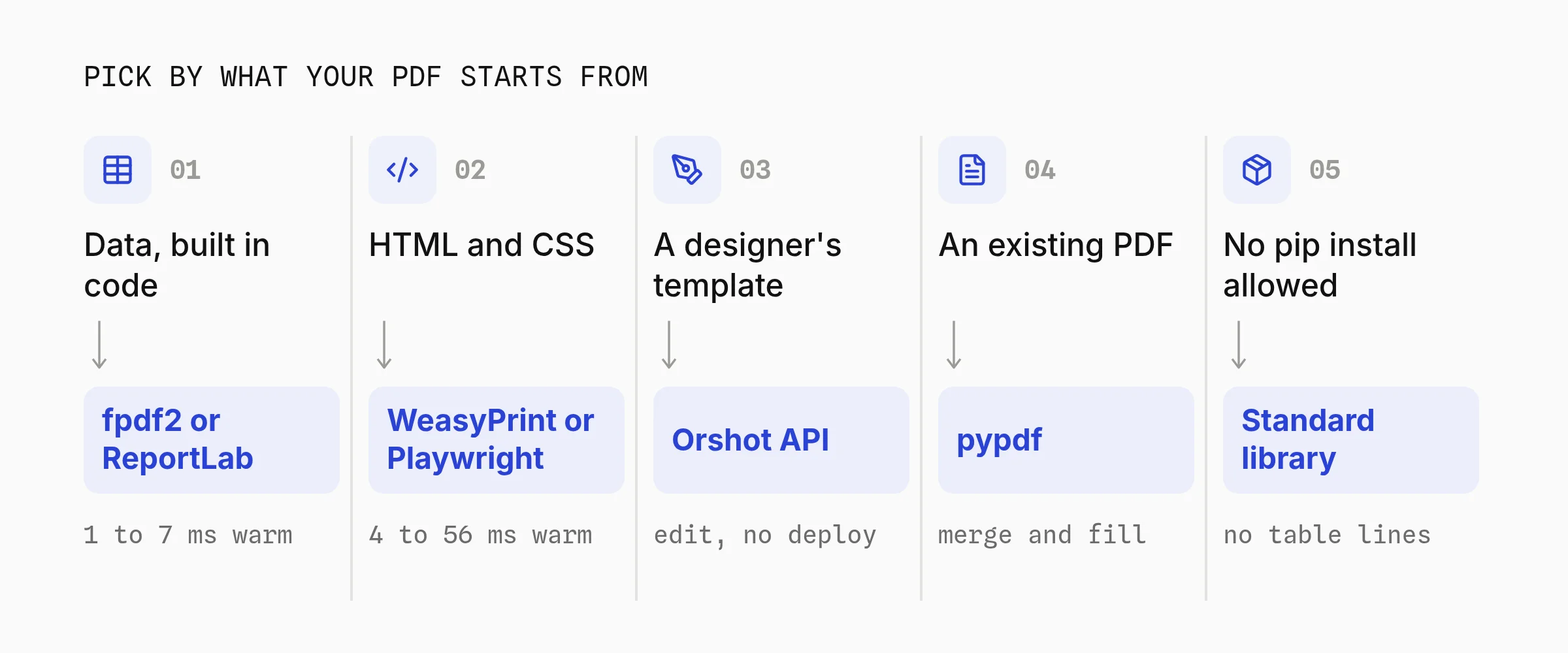
Pick by what your PDF starts from. Data built in code points to fpdf2 or ReportLab, HTML to WeasyPrint or Playwright, and an existing PDF to pypdf.
A layout a designer owns points to a template API like Orshot. A server where you can't install anything points to the standard library.
For hosted options beyond Orshot, I keep a comparison of PDF generation APIs, with verified pricing at three volumes. Writing JavaScript too? The Node.js PDF generator comparison runs the same invoice through Puppeteer, PDFKit and pdfmake.
Python PDF Generator FAQ
What is the best PDF library for Python?
How do I convert HTML to PDF in Python?
HTML(string=html).write_pdf('out.pdf'). WeasyPrint needs Pango 1.44 or newer on the system and runs no JavaScript. If the page relies on JavaScript or modern CSS, use Playwright with Chromium and call page.pdf(). Avoid pdfkit for new projects, since wkhtmltopdf was archived in January 2023.Can Python generate a PDF without external libraries?
Is ReportLab free?
How do I generate a PDF report with tables and charts in Python?
Table flows across pages, and reportlab.graphics.charts draws bar, line and pie charts as vectors. You can also save a matplotlib chart as an image and place it with fpdf2. With Orshot, pass the chart image URL as a template parameter.How do I export a .py file as a PDF?
HTML(string=highlight(code, PythonLexer(), HtmlFormatter(full=True))).write_pdf('code.pdf'). That gave me a one-page, color-highlighted PDF from a 23-line script. For a Jupyter notebook, run pip install "nbconvert[webpdf]", then jupyter nbconvert --to webpdf --allow-chromium-download notebook.ipynb.How can I generate a PDF from Python online for free?
How do I generate a PDF from a template in Python?
write_pdf(). Use a template API like Orshot if a designer owns the layout: design it in Orshot Studio and send the field values from Python in one request.Is pdfkit still maintained?
Can I use PyMuPDF in a commercial product?
Does Orshot have a Python SDK?
pip install orshot installs the official Orshot package, or you can call the REST endpoint with requests. Set the response format to pdf and the type to url to get a hosted PDF link back, kept for at least a year.What is Orshot?
Generate Your First PDF from Python
Sign up, copy the certificate template above and call it with the requests example in part 3. You get 100 free credits a month, no card needed.
If something doesn't work the way you expect, hit the chat button. I'm usually the one on the other end.