LinkedIn Carousels is one of the better formats for a short story in feed, but the production loop is painful. You design five or seven slides in Figma, export PNGs, upload them in order, write the caption, and hope you did not typo slide three after the client asked for one headline change. I wanted a small internal tool where marketing picks a theme, edits copy in a form, previews all slides, and publishes without leaving the browser.
By the end of this guide, you will have a SvelteKit application that uses Remote Functions to talk to Orshot on the server that list carousel templates from your workspace, build a form from each template's modifications metadata, render PNG slides with the Studio render API, and publish to LinkedIn through Social Publishing of accounts already connected in Orshot.
Prerequisites
- Node.js and npm installed. The demo app in this tutorial uses version 22 of Node.js.
- An Orshot account
Connect your LinkedIn Account to Orshot
Before you automate your LinkedIn carousels, you need to connect your LinkedIn account in Orshot by following these steps:
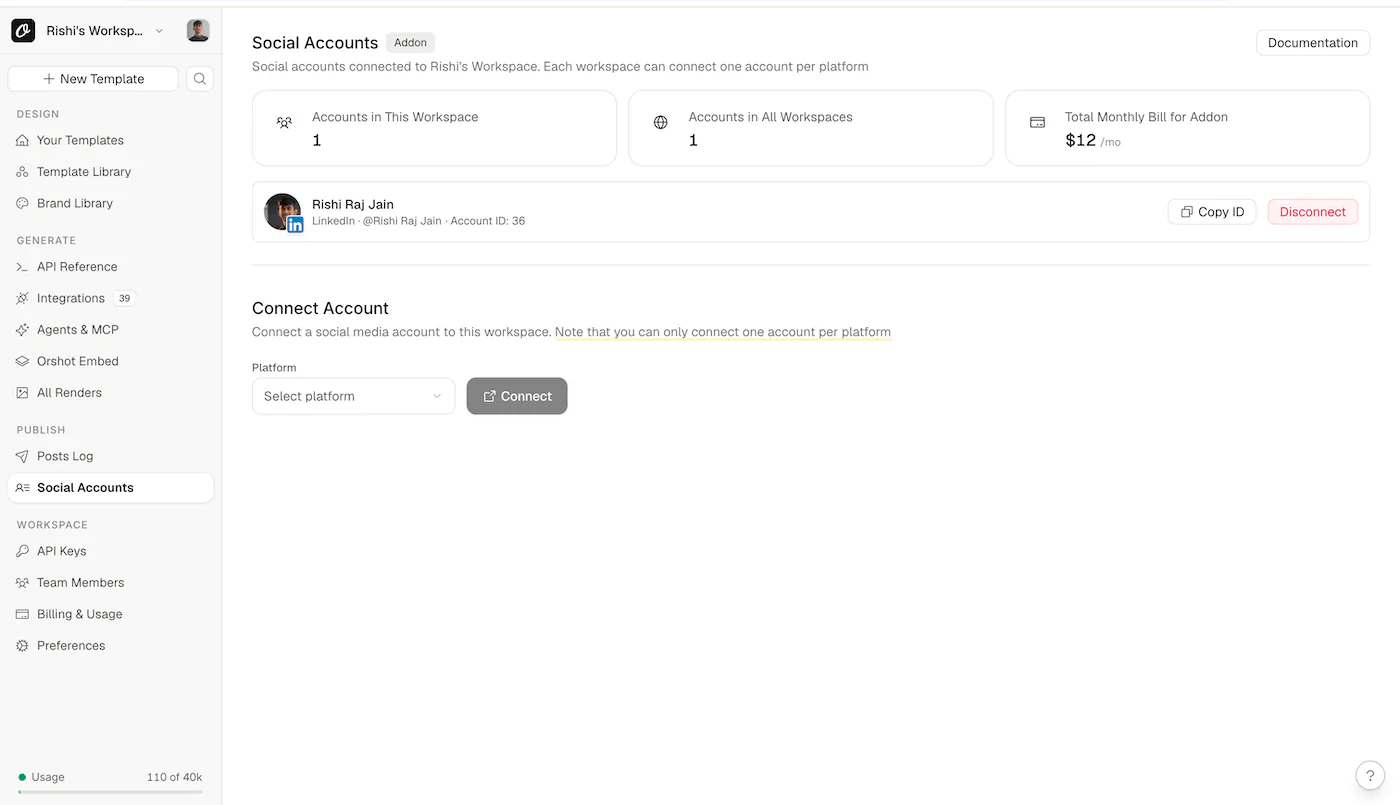
- Go to Orshot Studio > Publish > Social Accounts.
- In Connect Account section, select LinkedIn from the dropdown and complete the connection process.
- Once your LinkedIn account is connected, you should see it listed among your social accounts, similar to the example below:
Pick a Carousel Theme in Orshot
To get started with a pre-built carousel theme, visit Orshot Templates and search for Carousel.
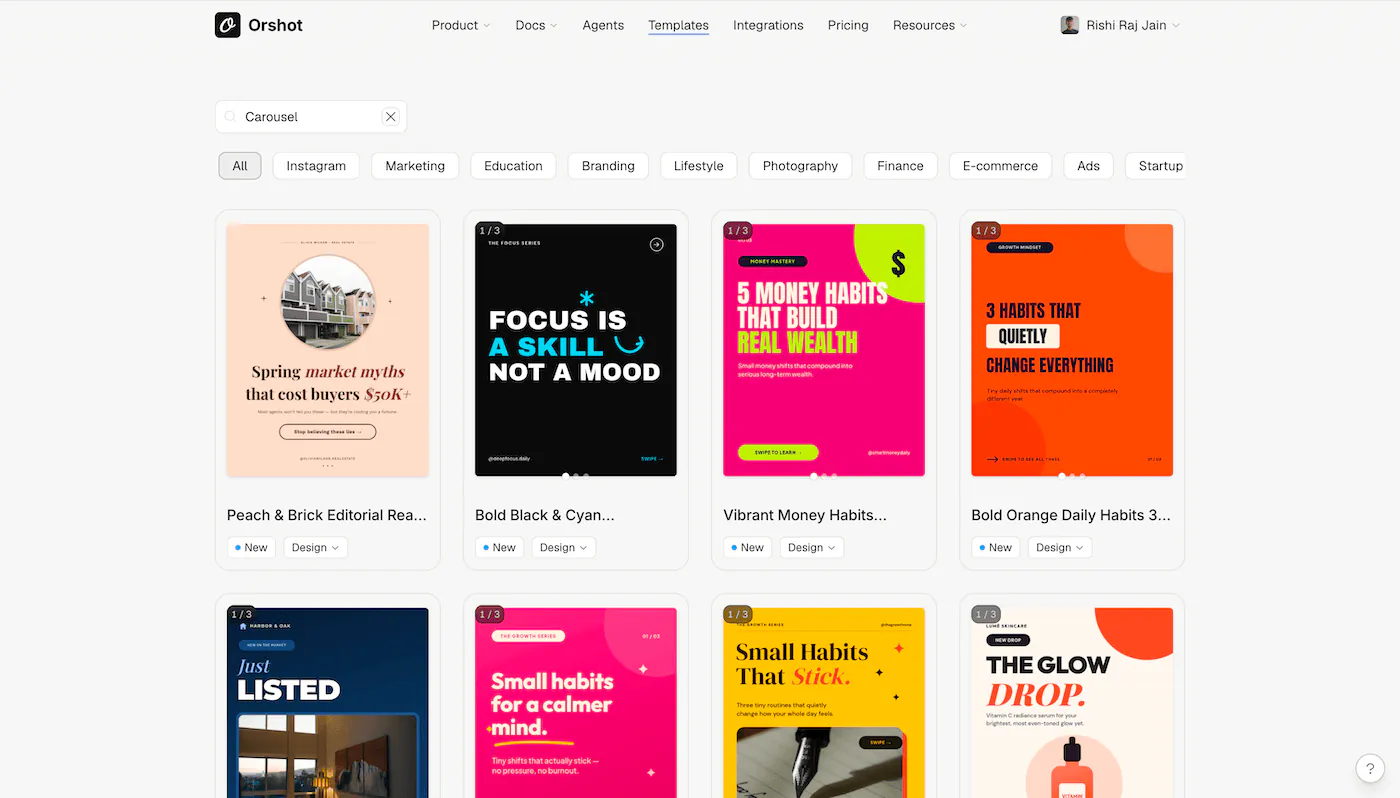
Click on a template you like to add a copy of it to your Orshot workspace:
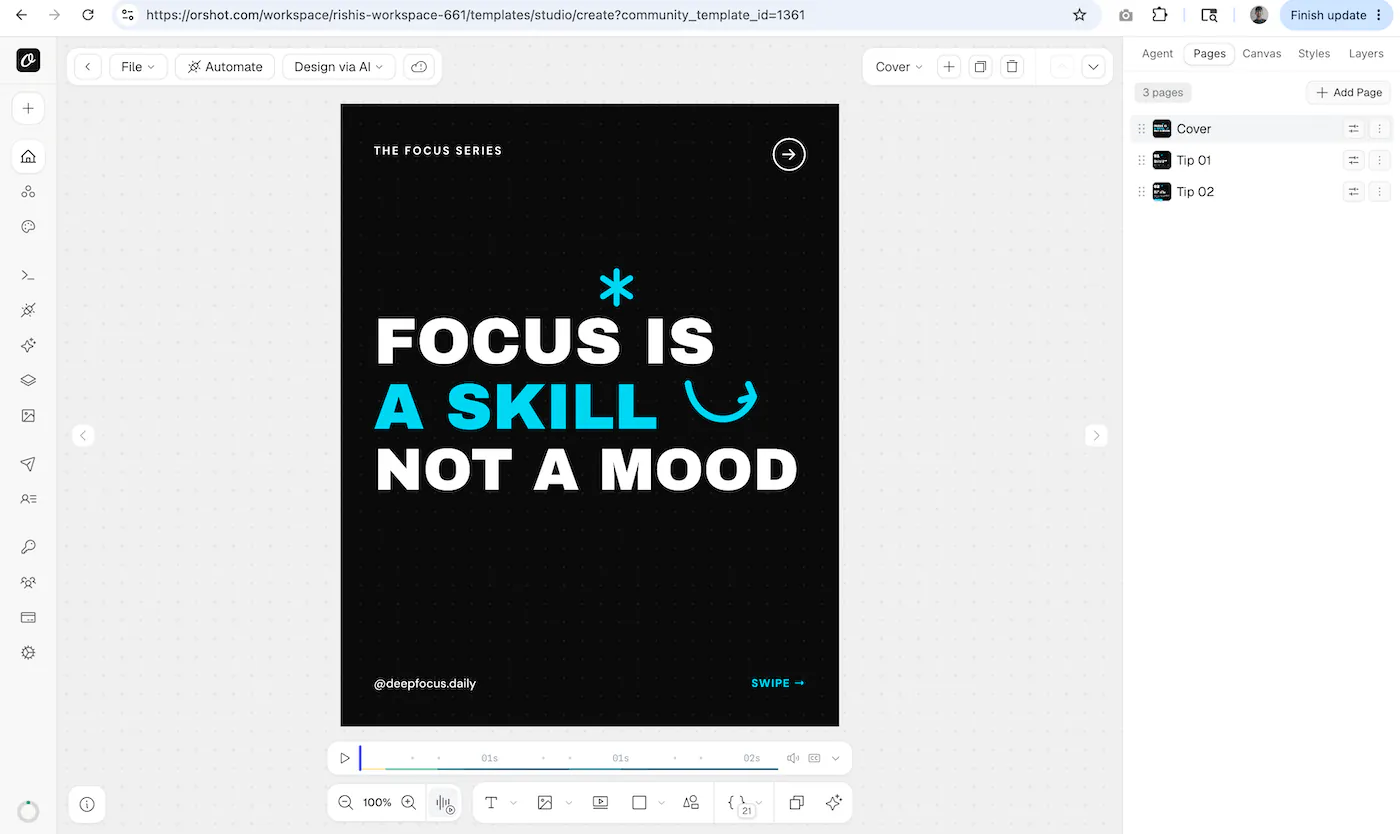
To test the theme with your own text, open the "Automate" tab, enter sample values for the fields, and click "Generate Render":
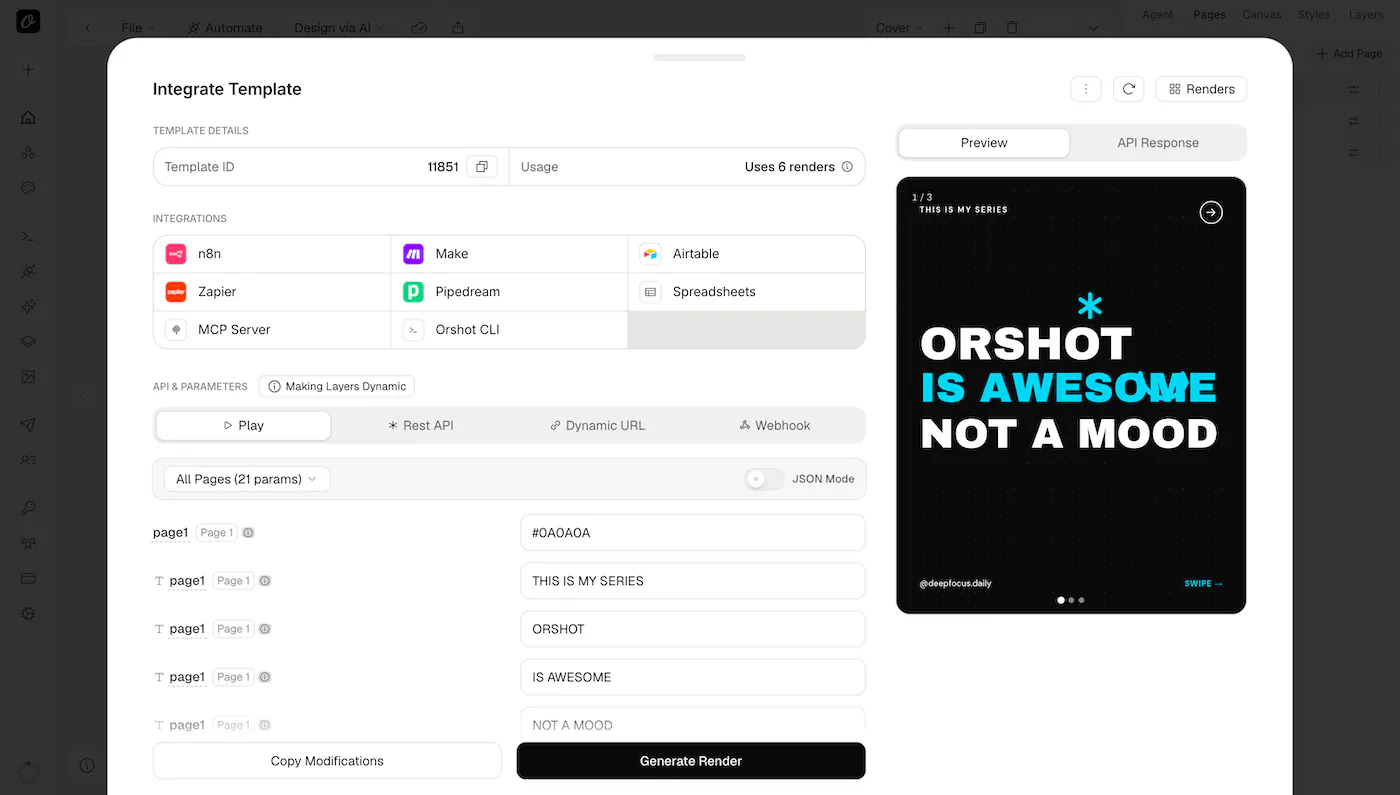
Once you've confirmed that editing the variables produces the expected result, you're ready to build out the UI in SvelteKit.
Create a new SvelteKit application with Remote Functions
Create a minimal SvelteKit project, install dependencies, and opt in to experimental remote functions (required as of SvelteKit 2.27+) as follows:
# create new svelte app
npx sv create linkedin-carousel
cd linkedin-carousel

# install the in-built deps
npm install

# add valibot for lightweight schema validation
npm install valibot

# add tailwindcss
npx sv add tailwindcss
Valibot is being installed to validate arguments on remote command calls (as recommended in the Svelte docs).
Then, enable remote functions, async, and Svelte 5 runes in svelte.config.js:
import adapter from "@sveltejs/adapter-auto";

/** @type {import("@sveltejs/kit").Config} */
const config = {
  compilerOptions: {
    experimental: {
      async: true,
    },
    runes: ({ filename }) =>
      filename.split(/[/\\]/).includes("node_modules") ? undefined : true,
  },
  kit: {
    adapter: adapter(),
    experimental: {
      remoteFunctions: true,
    },
  },
};

export default config;
Next, add your Orshot API key by copying it from Orshot Workspace → API Keys and pasting it into your .env file like this:
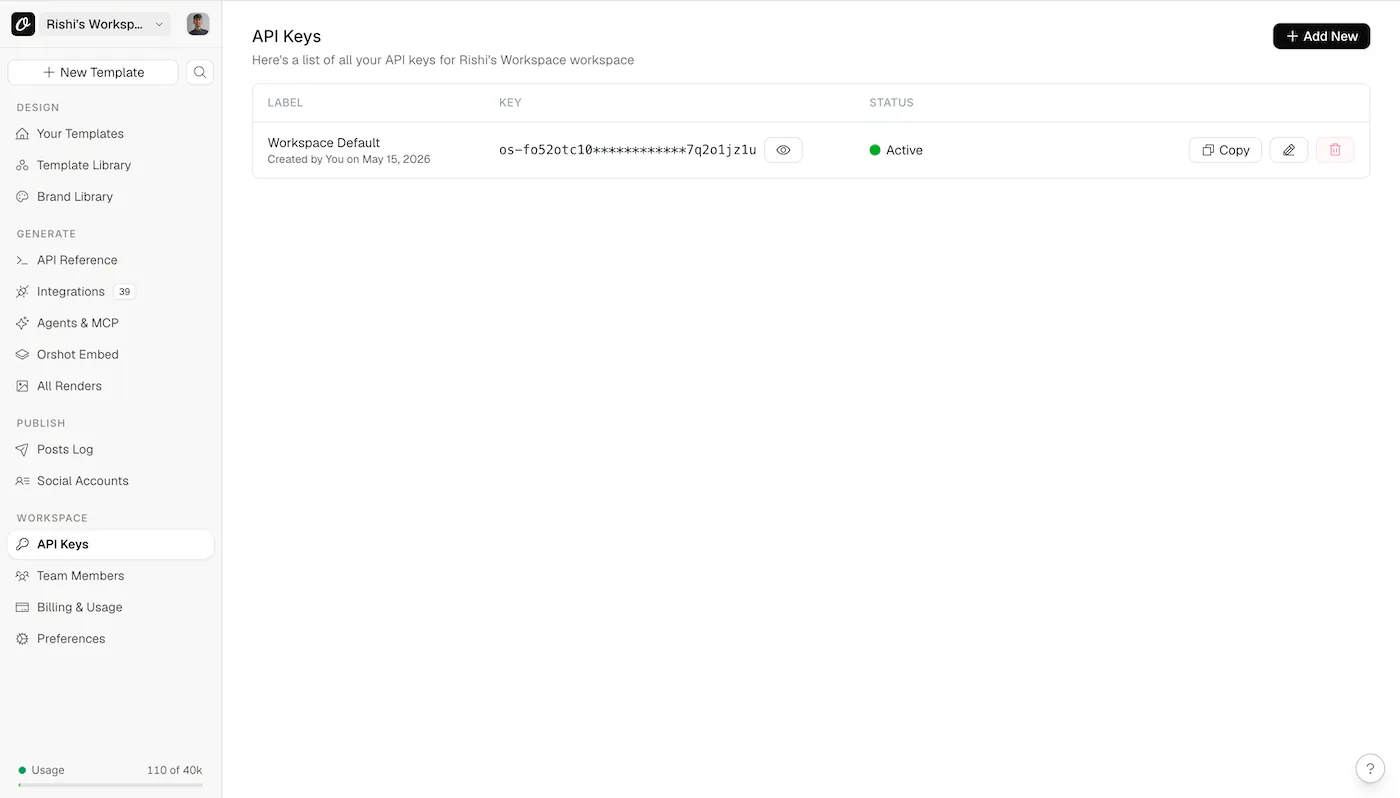
ORSHOT_API_KEY=your_api_key_hereFinally, start the dev server to confirm the baseline works with the following command:
npm run devVisit http://localhost:5173 in your browser to ensure the app is running correctly, then stop the dev server before proceeding to the following steps.
Set up server-side Orshot API helpers
Create a file at src/lib/server/orshot.ts to hold thin utility wrappers for the Orshot REST API. Each function should issue an HTTP request to the Orshot API, automatically attaching your API key in the Authorization header.
import { ORSHOT_API_KEY } from "$env/static/private";

const BASE = "https://api.orshot.com/v1";

function headers() {
  return {
    "Content-Type": "application/json",
    Authorization: `Bearer ${ORSHOT_API_KEY}`,
  };
}

export type OrshotModification = {
  key: string;
  id: string;
  type: string;
  description: string;
  example: string;
  page_number: number;
  page_id: string;
  element_name?: string;
};

export type OrshotTemplate = {
  id: number;
  name: string;
  description: string;
  tags: string[];
  thumbnail_url: string;
  canvas_width: number;
  canvas_height: number;
  pages_data: { page_id: string; name: string; thumbnail_url: string }[];
  modifications: OrshotModification[];
};

export async function listStudioTemplates(options?: {
  page?: number;
  limit?: number;
  search?: string;
}) {
  const params = new URLSearchParams({
    page: String(options?.page ?? 1),
    limit: String(options?.limit ?? 10),
  });
  if (options?.search) params.set("search", options.search);
  const res = await fetch(`${BASE}/studio/templates/all?${params}`, {
    headers: headers(),
  });
  if (!res.ok) throw new Error(`List templates failed: ${res.status}`);
  const json = await res.json();
  return json as {
    data: OrshotTemplate[];
    pagination: {
      page: number;
      limit: number;
      total: number;
      totalPages: number;
    };
  };
}

export type RenderSlide = {
  page: number;
  pageId?: string;
  content: string;
};

export type SocialAccount = {
  id: number;
  platform: string;
  account_name: string;
  account_username: string;
  account_avatar: string;
  connected_at: string;
  requires_reconnect?: boolean;
};

export async function listSocialAccounts(options?: {
  includeHealth?: boolean;
}) {
  const params = new URLSearchParams();
  if (options?.includeHealth) params.set("include_health", "true");

  const url =
    params.size > 0
      ? `${BASE}/social/accounts?${params}`
      : `${BASE}/social/accounts`;

  const res = await fetch(url, {
    headers: { Authorization: headers().Authorization },
  });
  if (!res.ok) throw new Error(`List social accounts failed: ${res.status}`);
  const json = await res.json();
  return (json.data ?? []) as SocialAccount[];
}

export async function renderStudioTemplate(input: {
  templateId: number;
  modifications: Record<string, string>;
}) {
  const res = await fetch(`${BASE}/studio/render`, {
    method: "POST",
    headers: headers(),
    body: JSON.stringify({
      templateId: input.templateId,
      modifications: input.modifications,
      response: {
        type: "url",
        format: "png",
      },
    }),
  });
  if (!res.ok) {
    const text = await res.text();
    throw new Error(`Render failed: ${res.status} ${text}`);
  }
  const json = await res.json();

  // Single-page template
  if (typeof json.data?.content === "string") {
    return [{ page: 1, content: json.data.content }] satisfies RenderSlide[];
  }

  // Multi-page carousel: data is an array of { page, pageId, content }
  if (Array.isArray(json.data)) {
    return json.data as RenderSlide[];
  }

  return [];
}

export async function publishToSocial(input: {
  accountIds: number[];
  content: string;
  mediaUrls: string[];
}) {
  const res = await fetch(`${BASE}/social/publish`, {
    method: "POST",
    headers: headers(),
    body: JSON.stringify({
      accounts: input.accountIds,
      content: input.content,
      media_urls: input.mediaUrls,
    }),
  });
  if (!res.ok) {
    const text = await res.text();
    throw new Error(`Publish failed: ${res.status} ${text}`);
  }
  return res.json();
}
Here’s what each exported function does in the code above:
listStudioTemplates: Fetches a list of Orshot studio templates (including carousels) with optional pagination and search, automatically using the API key.listSocialAccounts: Retrieves all connected social publishing accounts (such as LinkedIn) from Orshot, so you can select where to publish.renderStudioTemplate: Calls the Orshot render API to generate PNG URLs for each slide in a selected template and given modifications. Handles both single-slide (string response) and multi-slide (array response) cases.publishToSocial: Publishes a post with caption and media URLs to selected connected social accounts (e.g. LinkedIn) via Orshot’s Social Publish API. Throws an error on failure.
Create Remote Functions for Template Listing, Slide Preview, and Carousel Publishing
To easily connect your SvelteKit front end with Orshot, create a new file at src/lib/orshot.remote.ts. Remote functions defined here will run securely on the server, keeping your Orshot API key safe and never exposing it to the client.
import * as v from "valibot";
import { command, query } from "$app/server";
import {
  listStudioTemplates,
  listSocialAccounts,
  renderStudioTemplate,
  publishToSocial,
  type OrshotTemplate,
  type SocialAccount,
} from "$lib/server/orshot";

export const getCarouselTemplates = query(async () => {
  const { data } = await listStudioTemplates({
    limit: 40,
  });
  return data.filter((t) => t.pages_data?.length > 1) as OrshotTemplate[];
});

export const getLinkedInAccounts = query(async () => {
  const accounts = await listSocialAccounts();
  return accounts.filter((a) => a.platform === "linkedin") as SocialAccount[];
});

export const previewCarousel = command(
  v.object({
    templateId: v.number(),
    modifications: v.record(v.string(), v.string()),
  }),
  async ({ templateId, modifications }) => {
    const slides = await renderStudioTemplate({ templateId, modifications });
    return { slides };
  },
);

export const publishCarousel = command(
  v.object({
    accountIds: v.array(v.number()),
    caption: v.string(),
    mediaUrls: v.array(v.string()),
  }),
  async ({ accountIds, caption, mediaUrls }) => {
    const result = await publishToSocial({
      accountIds,
      content: caption,
      mediaUrls,
    });
    return result;
  },
);
The above code defines SvelteKit remote function endpoints that power the LinkedIn carousel tool:
getCarouselTemplates: Loads all carousel-style templates (with more than one page) from the Orshot API for the user's workspace.getLinkedInAccounts: Lists all connected LinkedIn accounts to target for publishing.previewCarousel: Renders preview slide PNGs from a selected template and user-provided form values via the Orshot render API.publishCarousel: Publishes rendered slides as a LinkedIn carousel post via Orshot's backend, using the selected accounts and caption.
These functions are called from the Svelte UI (see next section), letting the frontend build forms dynamically based on the template's parameter schema, preview, and publish posts, all without needing to store secrets or call the Orshot API directly from the browser.
Build the Svelte UI
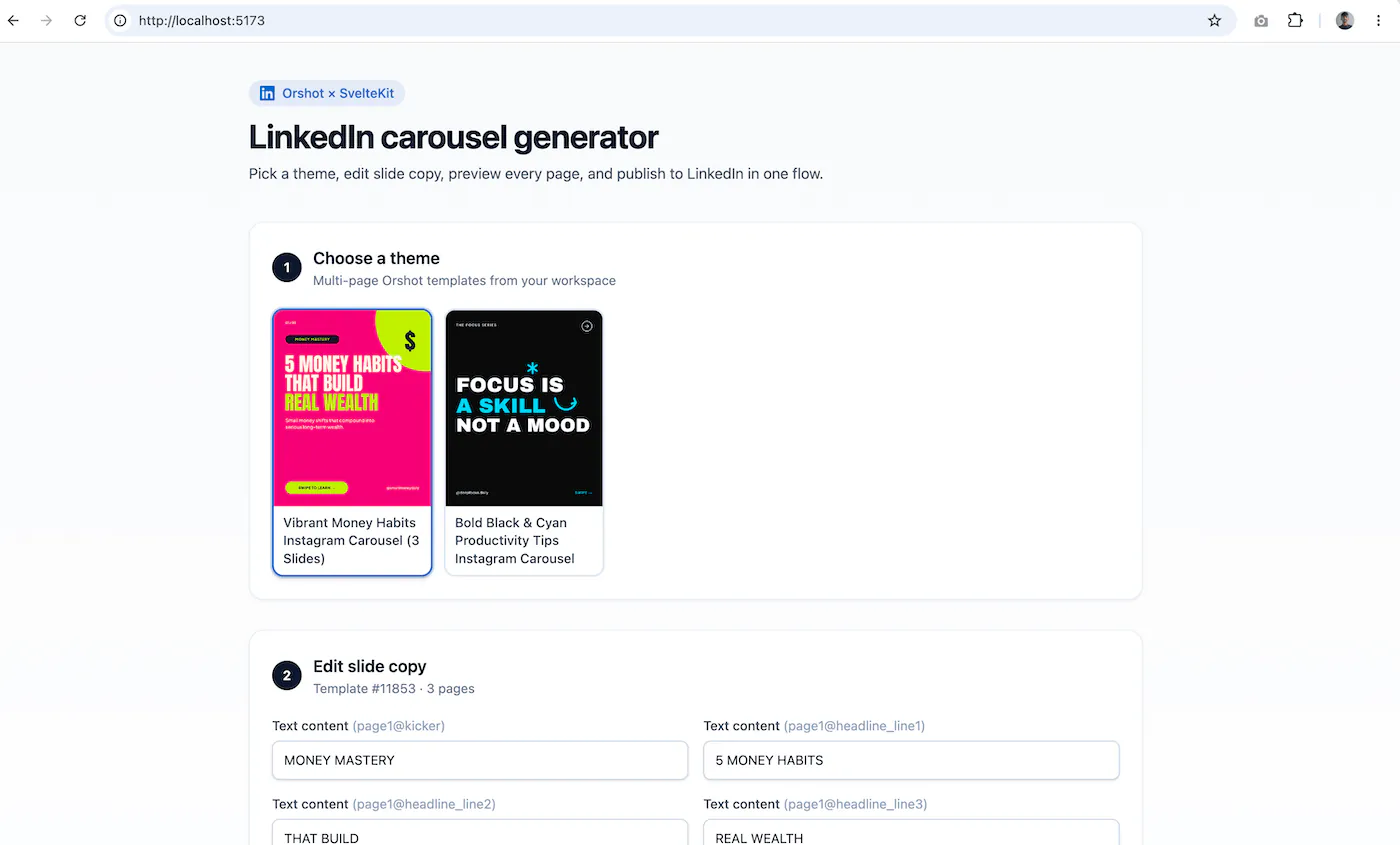
Create a file at src/routes/+page.svelte where you'll fetch the available carousel templates and the list of connected social accounts. The UI would allow the user to select a carousel theme, display input fields based on each template's modifications parameters, and invoke the provided remote functions for previewing and publishing. Since the project uses Svelte 5 runes mode, remember to manage local UI state with $state() (failing to do so will prevent the UI from updating after previewing).
<script lang="ts">
	import {
		getCarouselTemplates,
		getLinkedInAccounts,
		previewCarousel,
		publishCarousel
	} from '$lib/orshot.remote';
	import type { OrshotModification, OrshotTemplate } from '$lib/server/orshot';

	const templates = await getCarouselTemplates();
	const linkedInAccounts = await getLinkedInAccounts();

	const initialTemplate = templates[0] ?? null;
	const initialAccountId = linkedInAccounts[0]?.id ?? null;

	let selected = $state<OrshotTemplate | null>(initialTemplate);
	let values = $state<Record<string, string>>(
		initialTemplate
			? Object.fromEntries(
					(initialTemplate.modifications ?? []).map((m) => [m.key, m.example ?? ''])
				)
			: {}
	);
	let caption = $state('New carousel from our SvelteKit tool');
	let selectedAccountId = $state<number | null>(initialAccountId);
	let slides = $state<{ page: number; content: string }[]>([]);
	let publishing = $state(false);
	let previewing = $state(false);
	let error = $state('');

	function selectTemplate(t: OrshotTemplate) {
		selected = t;
		values = Object.fromEntries(
			(t.modifications ?? []).map((m) => [m.key, m.example ?? ''])
		);
		slides = [];
		error = '';
	}

	function labelFor(m: OrshotModification) {
		return m.element_name ?? m.description ?? m.key;
	}

	async function handlePreview() {
		if (!selected) return;
		previewing = true;
		error = '';
		try {
			const result = await previewCarousel({
				templateId: selected.id,
				modifications: values
			});
			slides = result.slides;
		} catch (e) {
			error = e instanceof Error ? e.message : 'Preview failed';
		} finally {
			previewing = false;
		}
	}

	async function handlePublish() {
		if (!slides.length) {
			error = 'Preview first so we have slide URLs to publish.';
			return;
		}
		if (selectedAccountId == null) {
			error = 'Connect a LinkedIn account in Orshot Social Accounts first.';
			return;
		}
		publishing = true;
		error = '';
		try {
			await publishCarousel({
				accountIds: [selectedAccountId],
				caption,
				mediaUrls: slides.map((s) => s.content)
			});
		} catch (e) {
			error = e instanceof Error ? e.message : 'Publish failed';
		} finally {
			publishing = false;
		}
	}
</script>

<div class="min-h-screen bg-linear-to-b from-slate-50 via-white to-slate-100">
	<div class="mx-auto max-w-5xl px-4 py-10 sm:px-6 lg:px-8">
		<header class="mb-10 text-center sm:text-left">
			<div class="mb-3 inline-flex items-center gap-2 rounded-full bg-[#0a66c2]/10 px-3 py-1 text-sm font-medium text-[#0a66c2]">
				<svg class="h-4 w-4" viewBox="0 0 24 24" fill="currentColor" aria-hidden="true">
					<path
						d="M20.447 20.452h-3.554v-5.569c0-1.328-.027-3.037-1.852-3.037-1.853 0-2.136 1.445-2.136 2.939v5.667H9.351V9h3.414v1.561h.046c.477-.9 1.637-1.85 3.37-1.85 3.601 0 4.267 2.37 4.267 5.455v6.286zM5.337 7.433a2.062 2.062 0 01-2.063-2.065 2.064 2.064 0 114.126 0 2.063 2.063 0 01-2.063 2.065zm1.782 13.019H3.555V9h3.564v11.452zM22.225 0H1.771C.792 0 0 .774 0 1.729v20.542C0 23.227.792 24 1.771 24h20.451C23.2 24 24 23.227 24 22.271V1.729C24 .774 23.2 0 22.222 0h.003z"
					/>
				</svg>
				Orshot × SvelteKit
			</div>
			<h1 class="text-3xl font-bold tracking-tight text-slate-900 sm:text-4xl">
				LinkedIn carousel generator
			</h1>
			<p class="mt-2 max-w-2xl text-slate-600">
				Pick a theme, edit slide copy, preview every page, and publish to LinkedIn in one flow.
			</p>
		</header>

		<section class="mb-8 rounded-2xl border border-slate-200/80 bg-white p-6 shadow-sm shadow-slate-200/50">
			<div class="mb-5 flex items-center gap-3">
				<span
					class="flex h-8 w-8 shrink-0 items-center justify-center rounded-full bg-slate-900 text-sm font-semibold text-white"
					>1</span
				>
				<div>
					<h2 class="text-lg font-semibold text-slate-900">Choose a theme</h2>
					<p class="text-sm text-slate-500">Multi-page Orshot templates from your workspace</p>
				</div>
			</div>

			{#if templates.length === 0}
				<div class="rounded-xl border border-dashed border-slate-300 bg-slate-50 px-6 py-10 text-center">
					<p class="font-medium text-slate-700">No carousel templates found</p>
					<p class="mt-1 text-sm text-slate-500">
						Create a multi-page template in Orshot Studio, then refresh this page.
					</p>
				</div>
			{:else}
				<div class="grid grid-cols-2 gap-3 sm:grid-cols-3 md:grid-cols-4 lg:grid-cols-5">
					{#each templates as t}
						<button
							type="button"
							class="group flex flex-col overflow-hidden rounded-xl border-2 bg-white text-left transition-all duration-200 hover:-translate-y-0.5 hover:shadow-md {selected?.id ===
							t.id
								? 'border-[#0a66c2] shadow-md ring-2 ring-[#0a66c2]/20'
								: 'border-slate-200 hover:border-slate-300'}"
							onclick={() => selectTemplate(t)}
						>
							<div class="aspect-4/5 overflow-hidden bg-slate-100">
								<img
									src={t.thumbnail_url}
									alt={t.name}
									class="h-full w-full object-cover transition-transform duration-200 group-hover:scale-105"
								/>
							</div>
							<span class="px-2.5 py-2 text-xs font-medium leading-snug text-slate-700 sm:text-sm">
								{t.name}
							</span>
						</button>
					{/each}
				</div>
			{/if}
		</section>

		{#if selected}
			<section
				class="mb-8 rounded-2xl border border-slate-200/80 bg-white p-6 shadow-sm shadow-slate-200/50"
			>
				<div class="mb-5 flex flex-wrap items-center justify-between gap-3">
					<div class="flex items-center gap-3">
						<span
							class="flex h-8 w-8 shrink-0 items-center justify-center rounded-full bg-slate-900 text-sm font-semibold text-white"
							>2</span
						>
						<div>
							<h2 class="text-lg font-semibold text-slate-900">Edit slide copy</h2>
							<p class="text-sm text-slate-500">
								Template #{selected.id} · {selected.pages_data.length} pages
							</p>
						</div>
					</div>
				</div>

				<div class="grid gap-4 sm:grid-cols-2">
					{#each selected.modifications as mod}
						<label class="block">
							<span class="mb-1.5 block text-sm font-medium text-slate-700">
								{labelFor(mod)}
								<span class="font-normal text-slate-400">({mod.key})</span>
							</span>
							{#if mod.type === 'text'}
								<input
									bind:value={values[mod.key]}
									class="w-full rounded-lg border border-slate-300 bg-white px-3 py-2.5 text-sm text-slate-900 shadow-sm transition focus:border-[#0a66c2] focus:ring-2 focus:ring-[#0a66c2]/20 focus:outline-none"
								/>
							{:else}
								<input
									bind:value={values[mod.key]}
									placeholder="https://..."
									class="w-full rounded-lg border border-slate-300 bg-white px-3 py-2.5 text-sm text-slate-900 shadow-sm transition focus:border-[#0a66c2] focus:ring-2 focus:ring-[#0a66c2]/20 focus:outline-none"
								/>
							{/if}
						</label>
					{/each}
				</div>
			</section>

			<section
				class="mb-8 rounded-2xl border border-slate-200/80 bg-white p-6 shadow-sm shadow-slate-200/50"
			>
				<div class="mb-5 flex items-center gap-3">
					<span
						class="flex h-8 w-8 shrink-0 items-center justify-center rounded-full bg-slate-900 text-sm font-semibold text-white"
						>3</span
					>
					<div>
						<h2 class="text-lg font-semibold text-slate-900">Preview & publish</h2>
						<p class="text-sm text-slate-500">Render slides, then post to your LinkedIn account</p>
					</div>
				</div>

				<div class="space-y-4">
					<label class="block">
						<span class="mb-1.5 block text-sm font-medium text-slate-700">Caption</span>
						<textarea
							bind:value={caption}
							rows="3"
							class="w-full resize-y rounded-lg border border-slate-300 bg-white px-3 py-2.5 text-sm text-slate-900 shadow-sm transition focus:border-[#0a66c2] focus:ring-2 focus:ring-[#0a66c2]/20 focus:outline-none"
						></textarea>
					</label>

					<label class="block">
						<span class="mb-1.5 block text-sm font-medium text-slate-700">LinkedIn account</span>
						{#if linkedInAccounts.length === 0}
							<div
								class="rounded-lg border border-amber-200 bg-amber-50 px-4 py-3 text-sm text-amber-800"
							>
								No LinkedIn accounts connected. Add one in Orshot → Social Accounts.
							</div>
						{:else}
							<select
								bind:value={selectedAccountId}
								class="w-full max-w-xl rounded-lg border border-slate-300 bg-white px-3 py-2.5 text-sm text-slate-900 shadow-sm transition focus:border-[#0a66c2] focus:ring-2 focus:ring-[#0a66c2]/20 focus:outline-none"
							>
								{#each linkedInAccounts as account}
									<option value={account.id}>
										{account.account_name} (@{account.account_username}) · id {account.id}
									</option>
								{/each}
							</select>
						{/if}
					</label>
				</div>

				<div class="mt-6 flex flex-wrap gap-3">
					<button
						type="button"
						disabled={previewing}
						onclick={handlePreview}
						class="inline-flex items-center justify-center gap-2 rounded-lg border border-slate-300 bg-white px-5 py-2.5 text-sm font-semibold text-slate-800 shadow-sm transition hover:bg-slate-50 disabled:cursor-not-allowed disabled:opacity-60"
					>
						{#if previewing}
							<span
								class="h-4 w-4 animate-spin rounded-full border-2 border-slate-300 border-t-slate-700"
							></span>
							Rendering…
						{:else}
							Preview slides
						{/if}
					</button>
					<button
						type="button"
						disabled={publishing || !slides.length || selectedAccountId == null}
						onclick={handlePublish}
						class="inline-flex items-center justify-center gap-2 rounded-lg bg-[#0a66c2] px-5 py-2.5 text-sm font-semibold text-white shadow-sm transition hover:bg-[#004182] disabled:cursor-not-allowed disabled:opacity-60"
					>
						{#if publishing}
							<span
								class="h-4 w-4 animate-spin rounded-full border-2 border-white/30 border-t-white"
							></span>
							Publishing…
						{:else}
							Publish to LinkedIn
						{/if}
					</button>
				</div>

				{#if error}
					<div
						class="mt-4 rounded-lg border border-red-200 bg-red-50 px-4 py-3 text-sm text-red-700"
						role="alert"
					>
						{error}
					</div>
				{/if}
			</section>

			{#if slides.length}
				<section
					class="rounded-2xl border border-slate-200/80 bg-white p-6 shadow-sm shadow-slate-200/50"
				>
					<div class="mb-5 flex items-center justify-between gap-3">
						<h2 class="text-lg font-semibold text-slate-900">Preview</h2>
						<span class="rounded-full bg-slate-100 px-3 py-1 text-xs font-medium text-slate-600">
							{slides.length} slide{slides.length === 1 ? '' : 's'}
						</span>
					</div>

					<div class="flex gap-4 overflow-x-auto pb-2">
						{#each slides as slide}
							<figure class="w-56 shrink-0 sm:w-64">
								<div
									class="overflow-hidden rounded-xl border border-slate-200 bg-slate-50 shadow-sm"
								>
									<img
										src={slide.content}
										alt="Slide {slide.page}"
										class="w-full object-cover"
									/>
								</div>
								<figcaption class="mt-2 text-center text-xs font-medium text-slate-500">
									Slide {slide.page}
								</figcaption>
							</figure>
						{/each}
					</div>
				</section>
			{/if}
		{/if}
	</div>
</div>
In the code above:
modificationsarray is used to dynamically generate the input fields for the form.- Any new parameter added in Orshot Studio appears automatically in the UI when the template list is refreshed, no code change is needed to handle new input fields.
- Parameter keys (e.g.,
page2@headline) are displayed as-is to ensure they match exactly what the Orshot render API expects.
Render response format for carousels
For multi-page templates, a successful PNG render returns data as an array of objects with page, pageId, and content (hosted PNG URL). That matches LinkedIn's need for ordered slide images. Your preview grid should preserve array order when passing URLs to publish.
Example shape (abbreviated from the API docs):
{
  "data": [
    {
      "page": 1,
      "pageId": "a1b2c3d4-…",
      "content": "https://storage.orshot.com/…/page_1.png"
    },
    {
      "page": 2,
      "pageId": "b2c3d4e5-…",
      "content": "https://storage.orshot.com/…/page_2.png"
    }
  ],
  "type": "url",
  "format": "png",
  "totalPages": 2,
  "renderedPages": 2
}
Note: Use
media_urls(notmedia_url) on the Social Publish endpoint when posting multiple images as a carousel. PNG and JPG are supported on LinkedIn.
Test the Complete Workflow
- Start the app with
npm run devand open the home page. - Select a carousel template and confirm modification fields populate with example values from the API.
- Confirm a LinkedIn account appears in the dropdown (connect one in Orshot first if not).
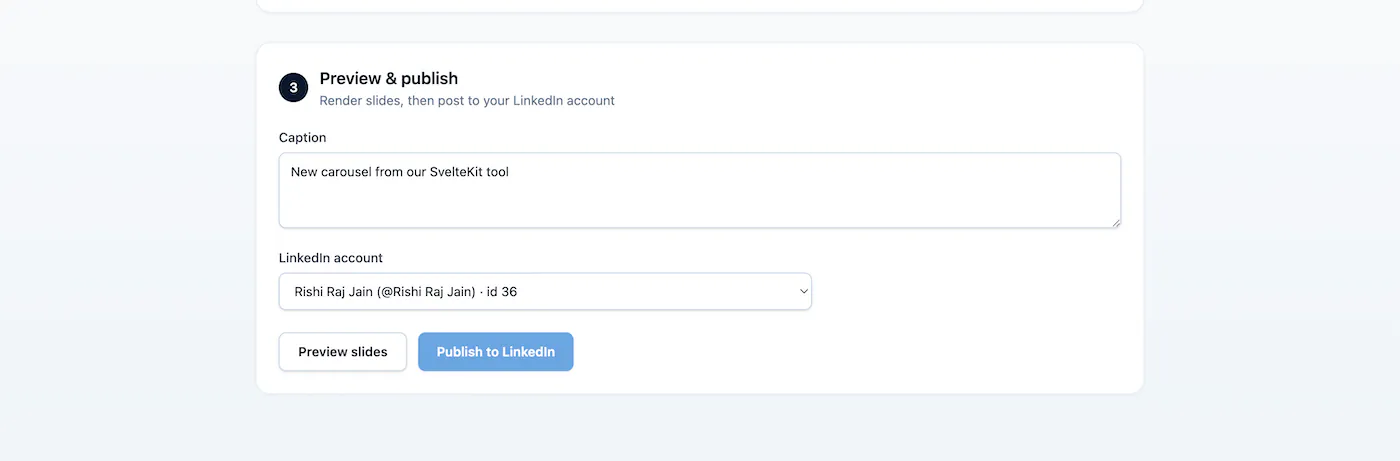
- Edit copy, click Preview slides, and confirm each slide image loads.
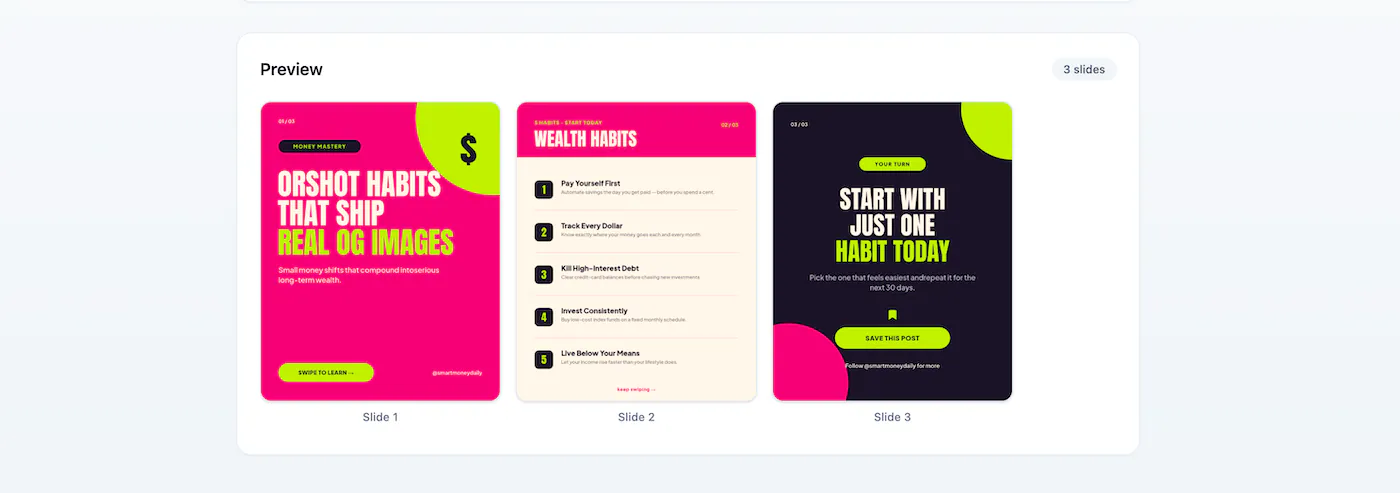
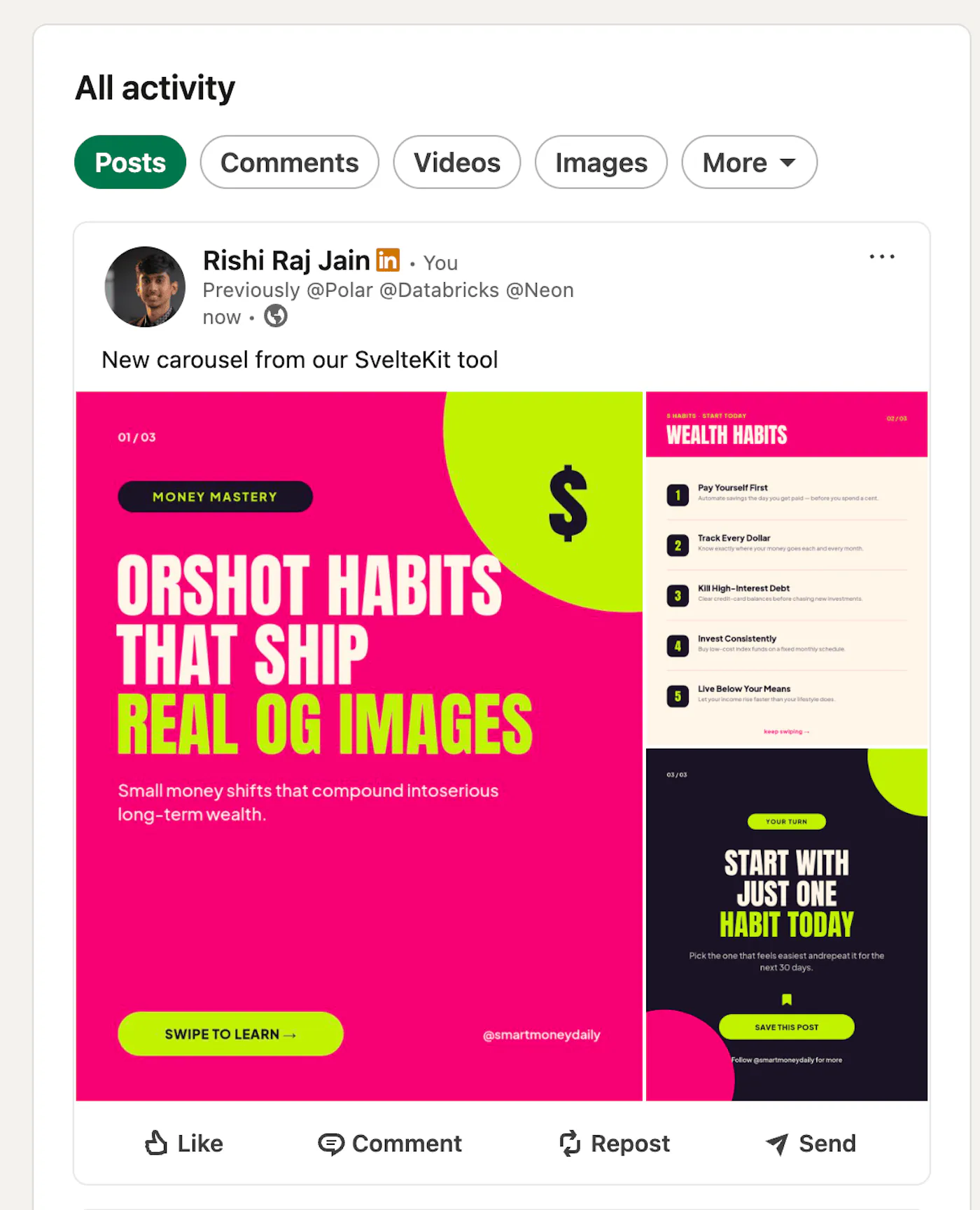
- Click Publish to LinkedIn and check the post on your profile (or drafts if you set
isDraft: truein the publish payload for testing).
Ending thoughts
Using Remote Functions in SvelteKit provides a clean way to integrate with the Orshot API while keeping sensitive logic securely on the server. This approach allows you to manage template selection, parameter editing, slide previewing, and publishing all from a streamlined, interactive single-page Svelte UI. By keeping templates, dynamic fields, and rendering work in Orshot, your application remains flexible and easy to extend as new templates or input parameters are added.