
Today we're excited to launch the Orshot Buffer integration.
To schedule Buffer posts from Google Sheets with an image per row, connect Buffer to Orshot and run the sheet to Buffer workflow. Orshot renders each row into a branded image, and Buffer gets one post a day.
Below is every screen from my run on November 7, 2026, plus the one-click route from the editor and the API call.
The whole flow in 45 seconds. I made this film from the same screens with the Orshot connector in Claude Code.
What the Orshot Buffer Integration Does
The Orshot Buffer integration sends anything Orshot renders to your Buffer account: images, multi-page carousels, PDFs and videos. Buffer then publishes them to the channels you connected there.
- Connect with Buffer's own sign-in. One click from Orshot's Integrations page, no API key to copy. Orshot lists your Buffer channels right away.
- Send from three places. The render API (
publish.bufferon any render), the Send to Buffer workflow step, and Post to Social in the Orshot editor. - Pick how each post lands. Add to the queue, schedule for a time, save as a draft for review, save as an idea, or share now.
- Carousels and video included. A multi-page template goes to Buffer as one carousel. Videos go as Reels on Instagram, with a title on YouTube.
- Data per row. A sheet column can set each post's caption, time and channels, so one sheet can fill several clients' calendars.
Pricing: sending to Buffer works on every Orshot plan, Free included. Renders use your plan's credits as usual, and the send itself costs nothing extra.
Why Buffer's Bulk Upload Is Not Enough
Buffer's bulk upload takes a CSV with text, one image link, tags and a posting time per row. It only posts what you give it, so every image has to exist first.
As of November 7, 2026, Buffer's bulk upload guide limits each upload to 10 posts per channel on the free plan and 100 on paid plans. It takes text and single-image posts only: no carousels, videos or YouTube.
Orshot fills that gap. Orshot is an API that turns your design templates into images, PDFs and videos. One template plus one sheet row gives one finished post image, and the Buffer step sends it with the row's caption.
Schedule Buffer Posts from Google Sheets in 6 Steps
The whole setup takes about 5 minutes the first time. You need an Orshot account, a Buffer account with at least one channel, and a Google Sheet with one row per post.
Step 1: Connect Buffer to Orshot
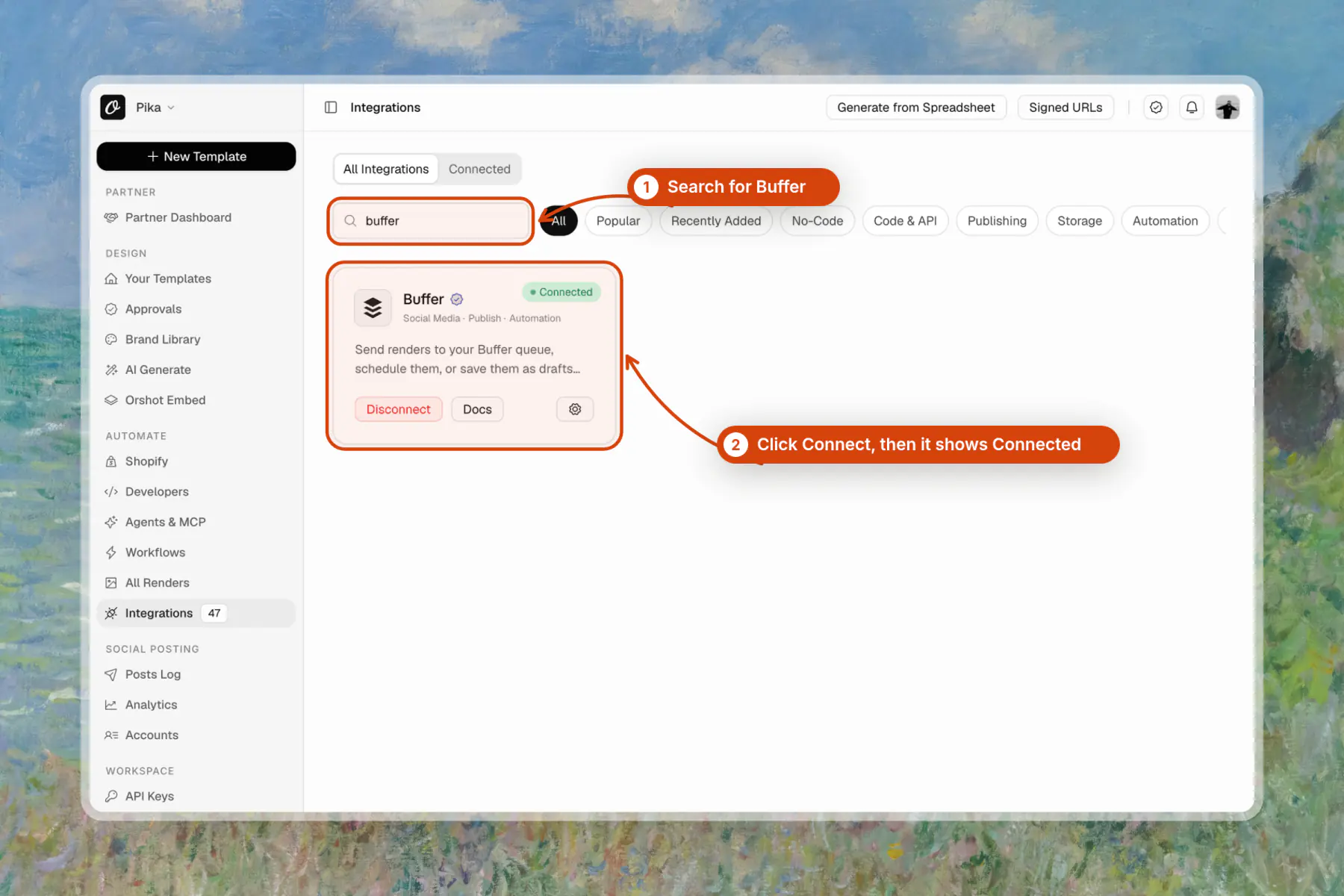
In Orshot, open Integrations from the sidebar and search for Buffer. Click Connect on the Buffer card.
Step 2: Approve Orshot in Buffer
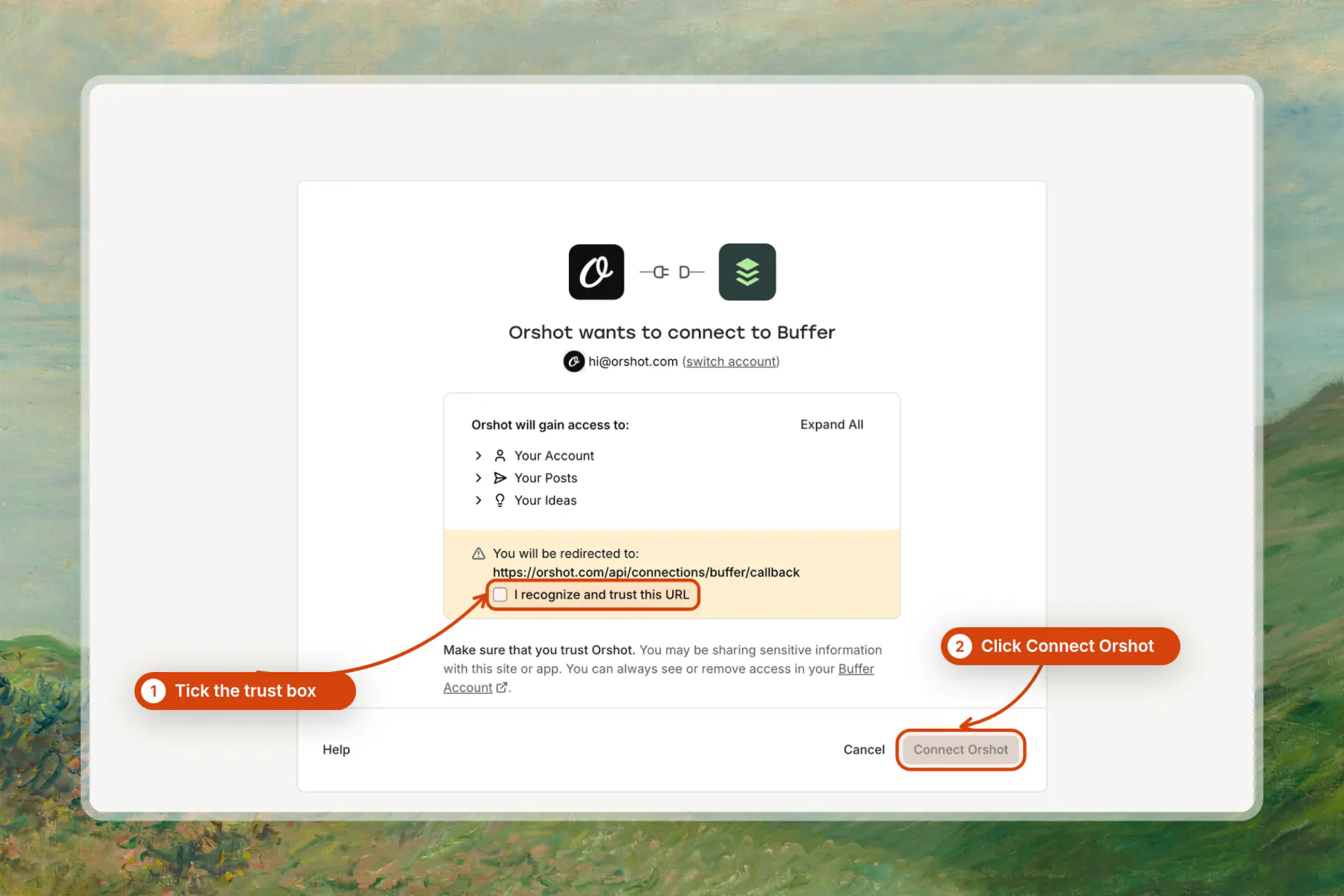
Buffer asks you to confirm the connection. Tick I recognize and trust this URL, then click Connect Orshot.
Step 3: Check your Buffer channels
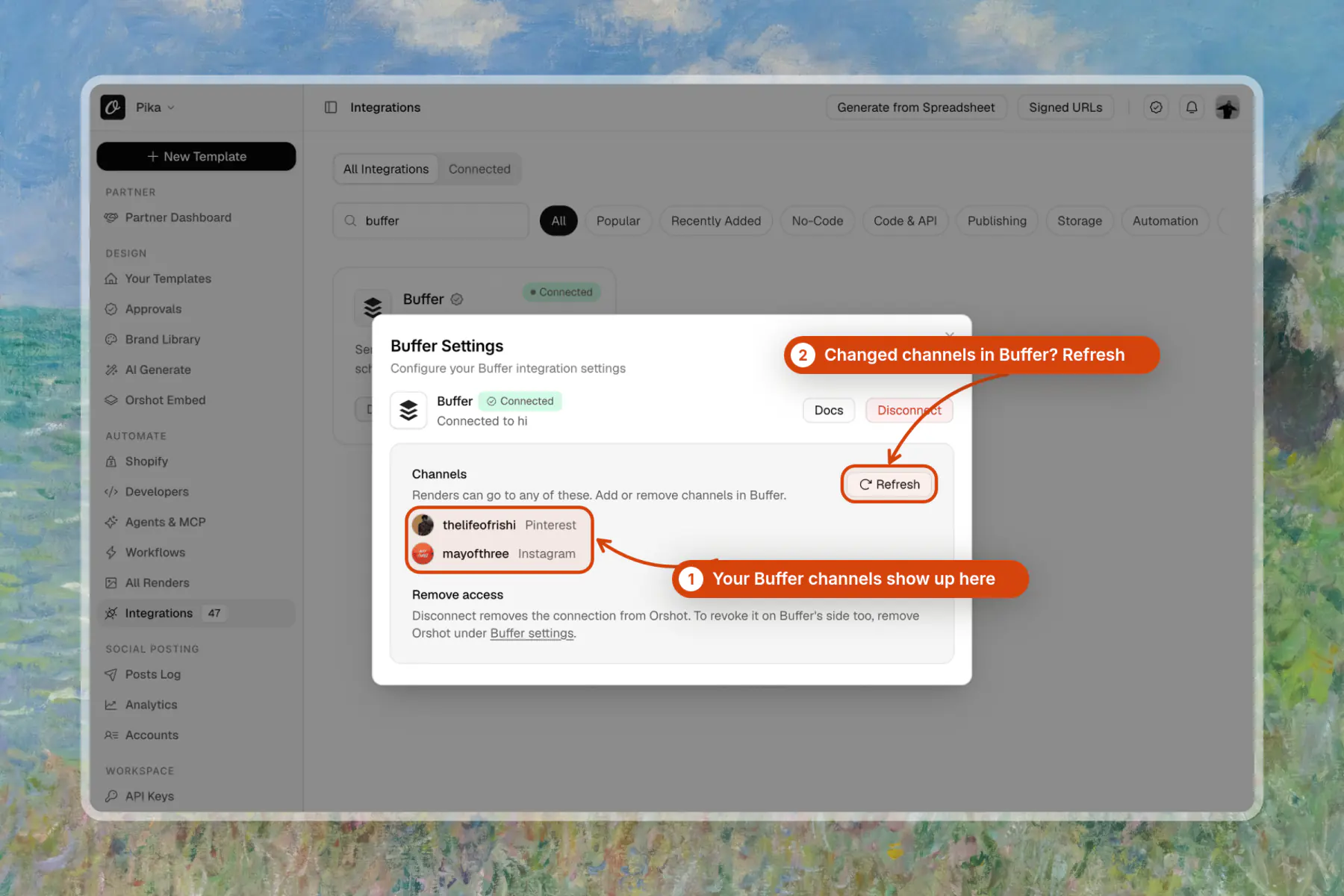
Back in Orshot, the Buffer settings list every channel from your Buffer account. Added a channel in Buffer later? Click Refresh.
Step 4: Pick the sheet to Buffer workflow
Open Workflows, then Explore templates, and filter by Buffer. Pick Turn a spreadsheet into a week of scheduled Buffer posts.
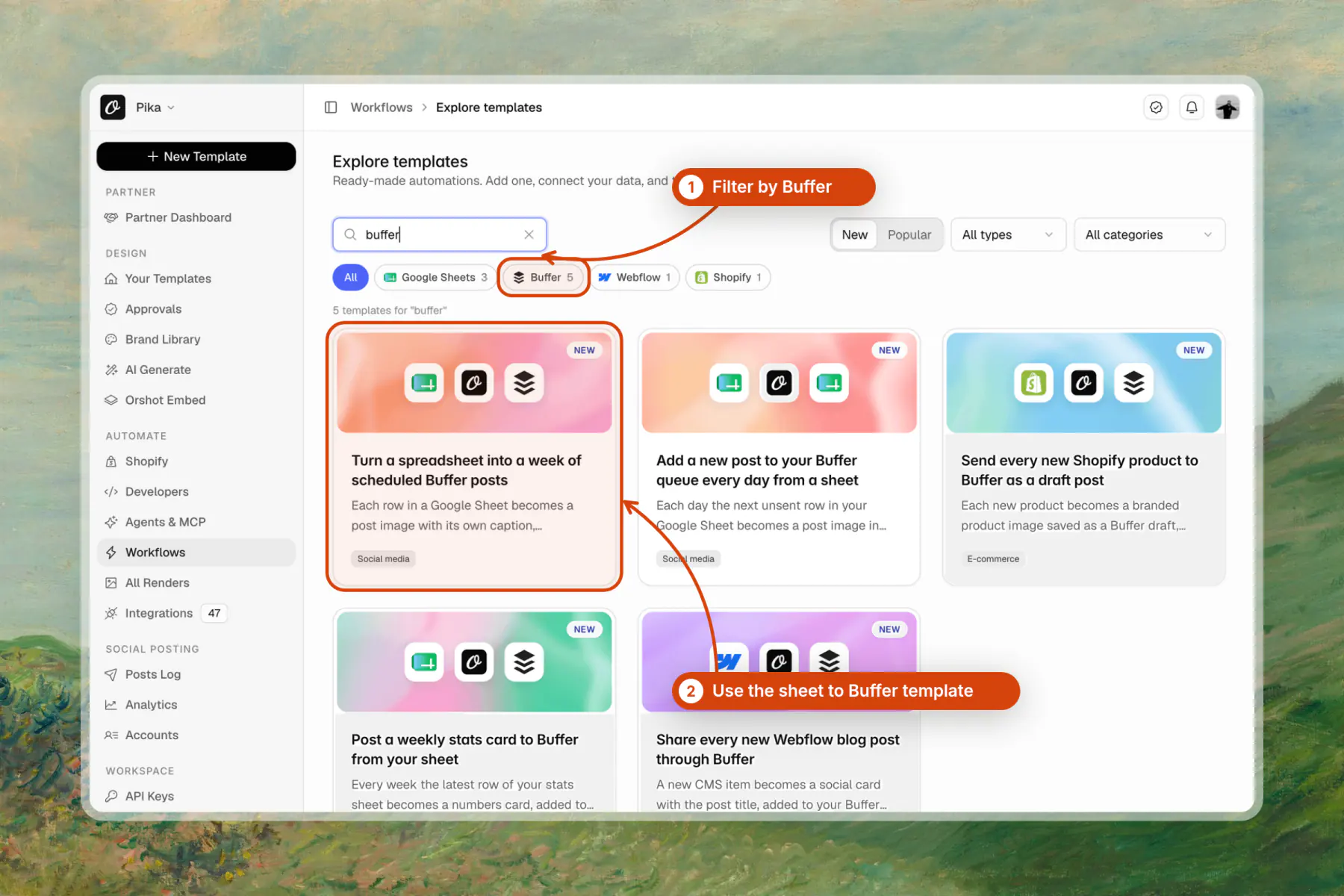
The workflow reads the sheet, renders the template and sends to Buffer. In the sheet, name your columns after the template's fields (headline, image) and add a caption column. The render step matches same-named columns on its own.
Step 5: Set up the Send to Buffer step
Connect Google, pick the sheet and pick your template. Then open Send to Buffer:
- Tick the Buffer channels that should get every post.
- Set Send as to Scheduled and type the first Post at time.
- Set Spread posts to one a day. A sheet of 7 rows becomes a week of posts.
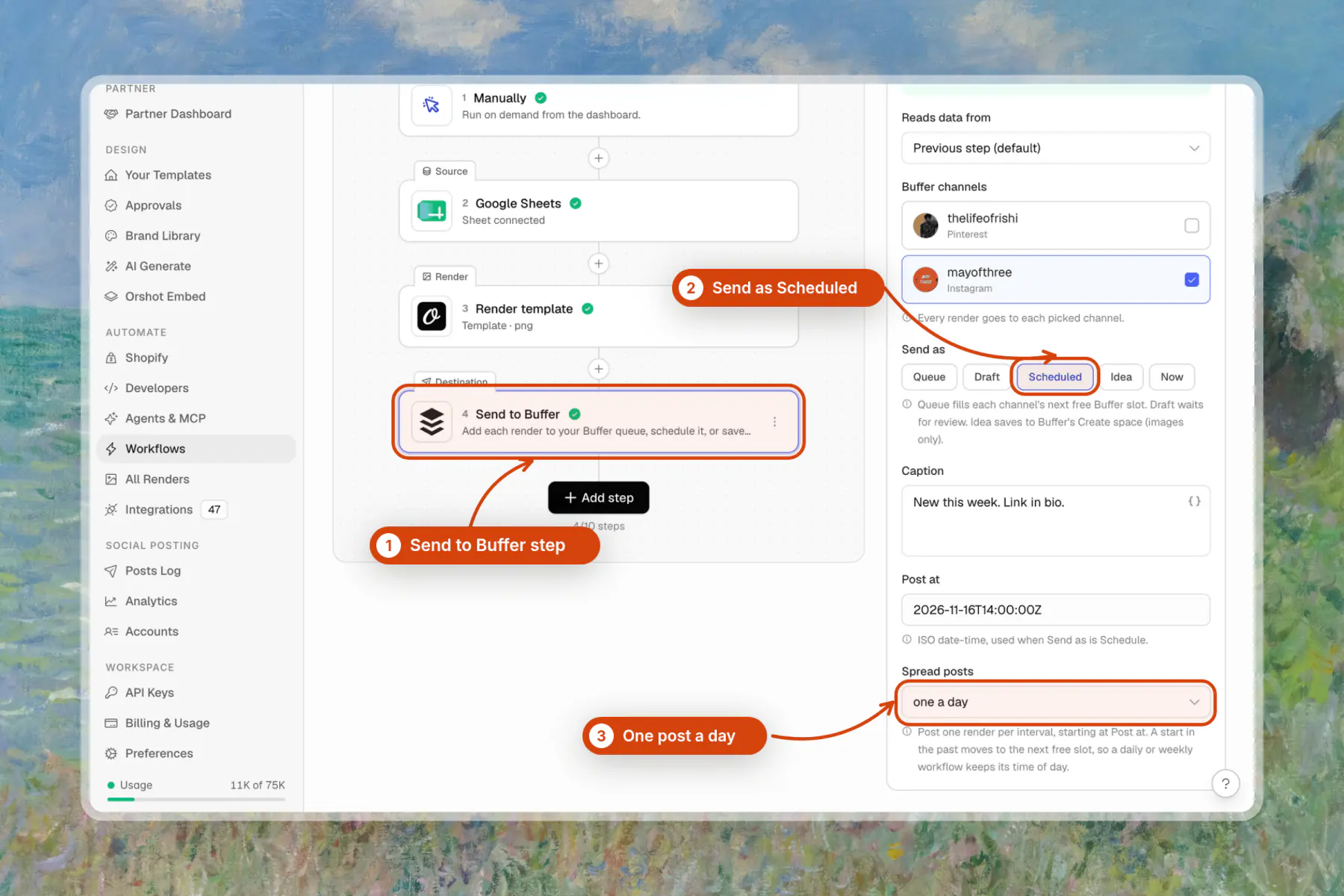
Pick Queue instead if Buffer's posting schedule should decide the times. Pick Draft if someone reviews every post in Buffer first.
Step 6: Run it and check Buffer
Save the workflow and click Run Now. Each row becomes its own post in Buffer, with its image, its caption and its time. Open the Buffer queue to check them.
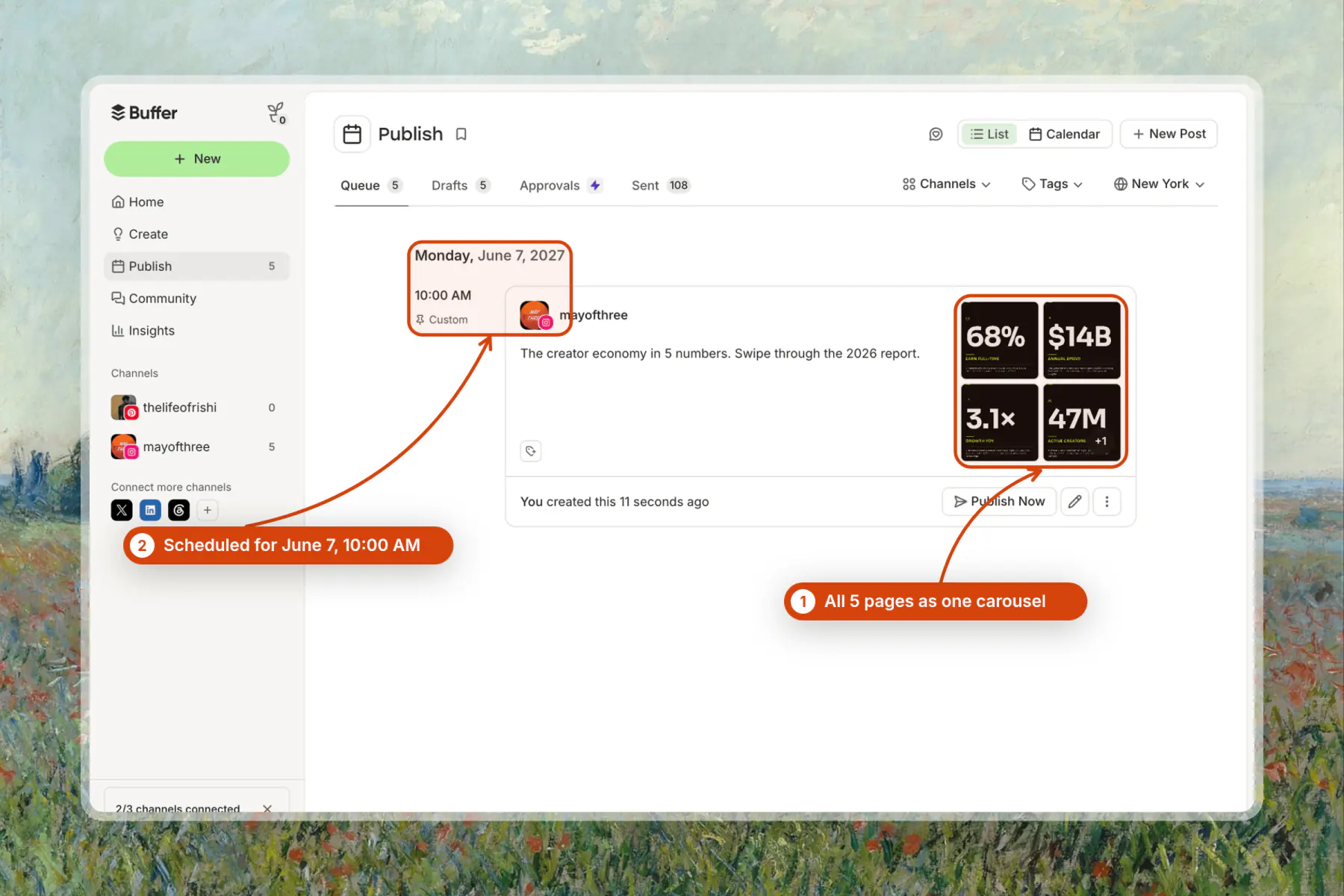
To keep my test channel clean, the post above came from the editor button in the next section. Workflow posts land in the same queue the same way, one per row.

What your sheet needs
| Column | What it does |
|---|---|
Template fields (headline, image) | Fill the design. Name them like the template's fields. |
caption | The Buffer post text for that row. |
| Post-at column (optional) | A time per row. It wins over Spread posts. |
| Channels column (optional) | Buffer channel IDs per row, for agencies posting for several clients. |
For a daily drip instead of a weekly batch, use Add a new post to your Buffer queue every day from a sheet. It sends the next unsent row each day and marks it as sent.
Send One Design to Buffer from Studio
Sending a single design from the Orshot editor takes three clicks. Use it for one-off posts, like a launch carousel, without building a workflow.
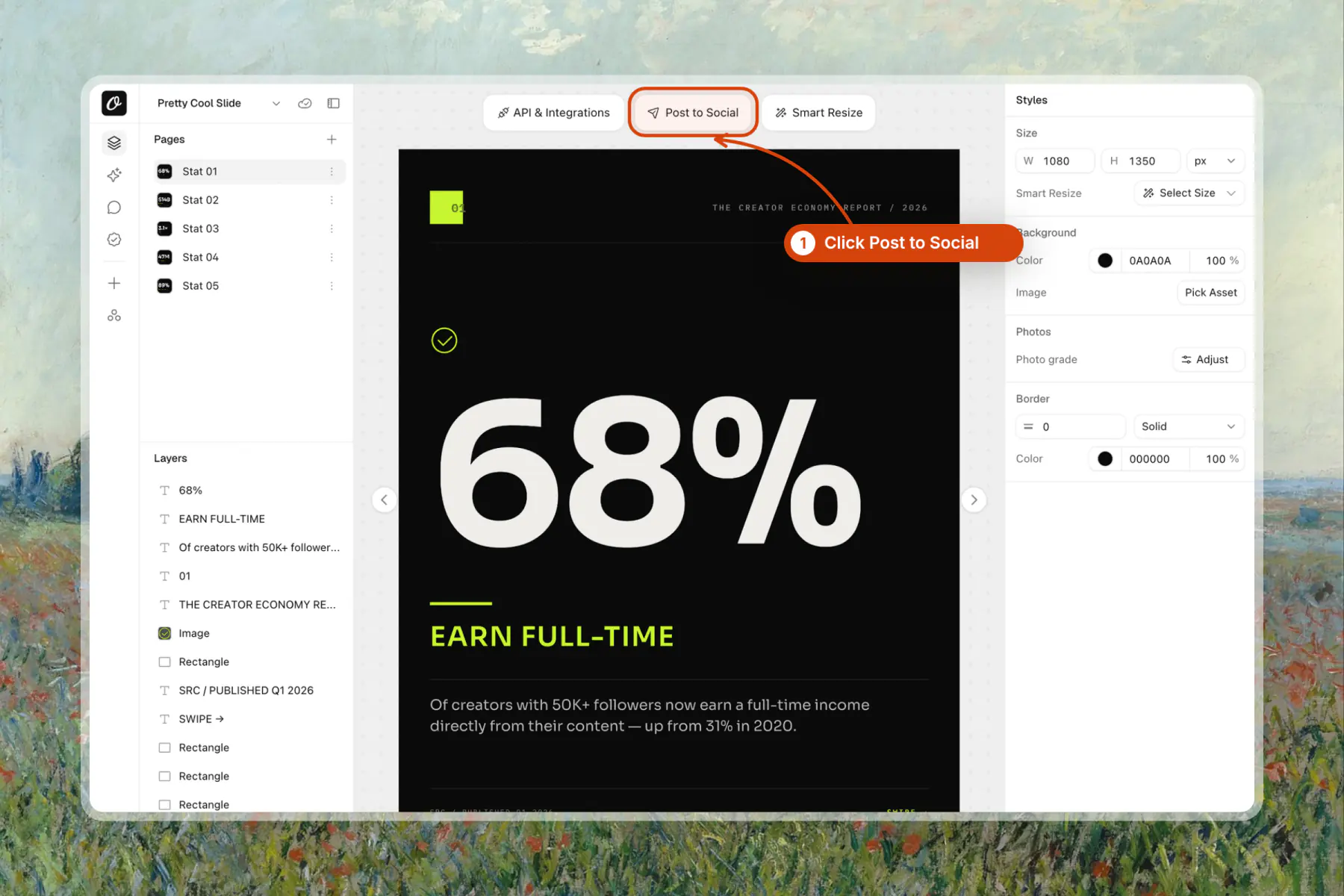
Step 1: Click Post to Social
Open the design in Orshot Studio and click Post to Social at the top.
Step 2: Pick the Buffer tab and your channels
Switch to the Buffer tab, pick the pages and channels, and write the caption. Then choose Queue, Schedule, Draft, Idea or Now.
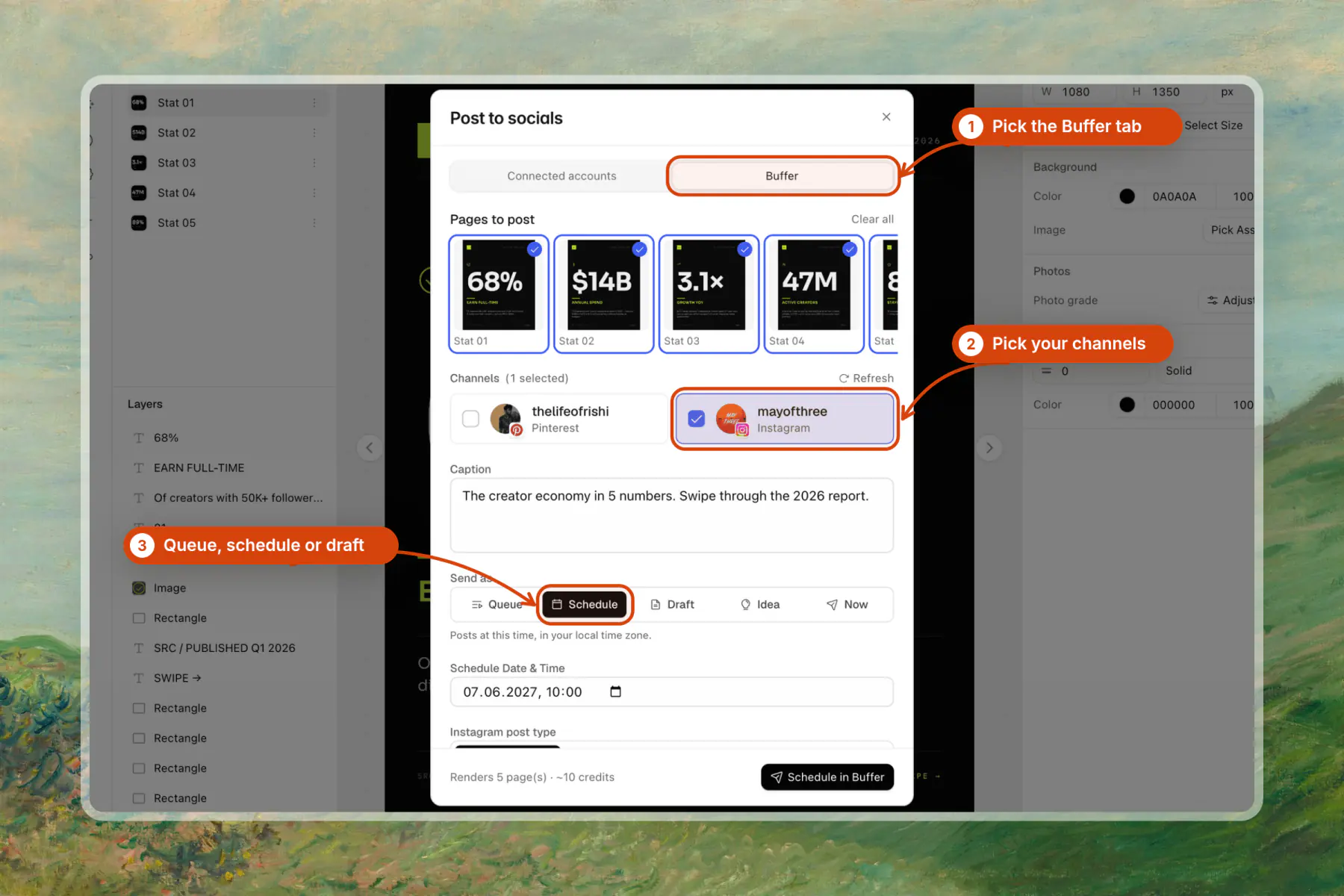
A multi-page design goes to Buffer as one carousel. Buffer's own bulk upload can't send carousels at all.
Step 3: Open it in Buffer
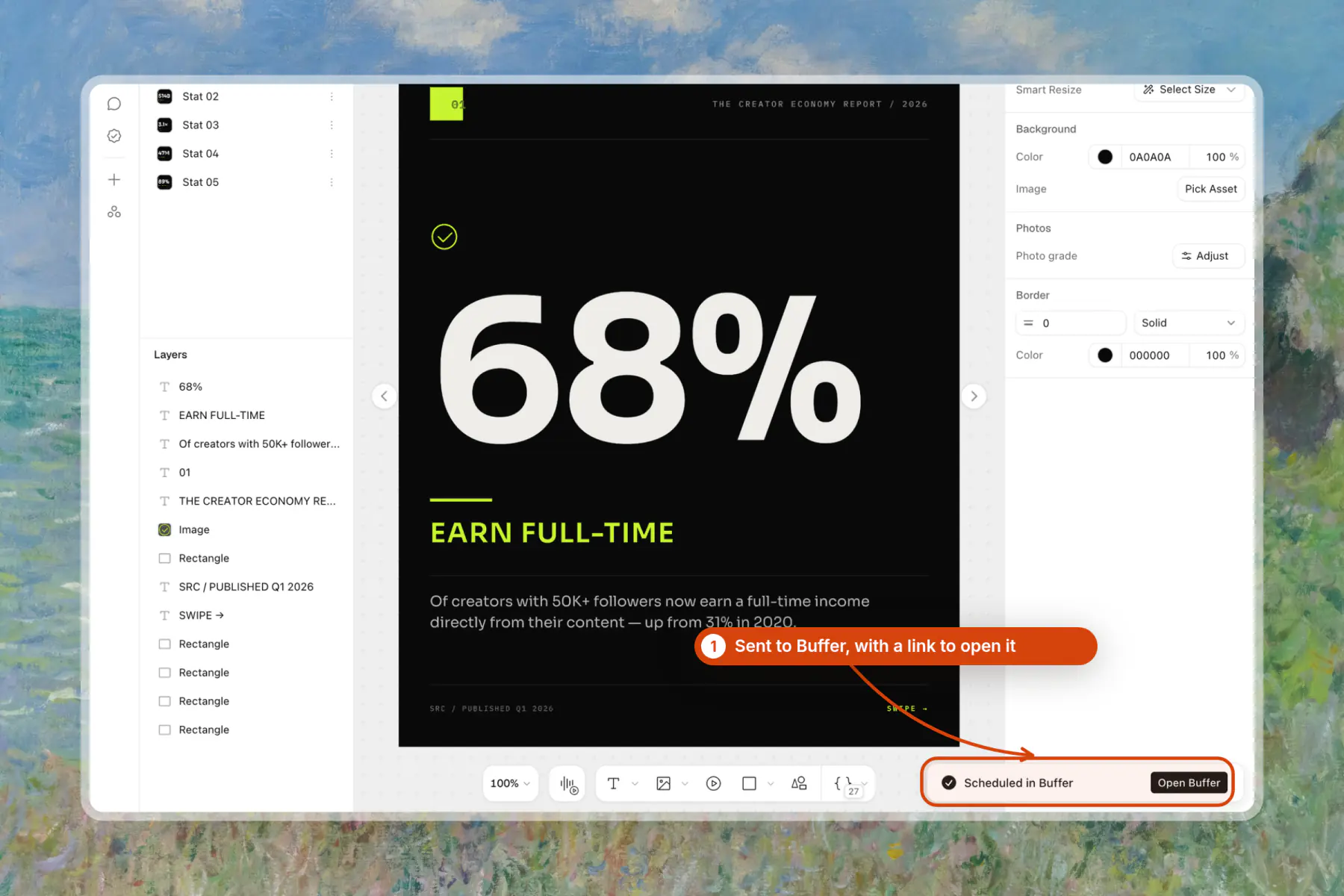
Orshot renders the pages and sends them. The toast confirms it with an Open Buffer link.
Send Renders to Buffer from the API
The Orshot render API sends to Buffer in the same call. Add publish.buffer to a render request, and the response holds the file URL and the Buffer post IDs.
const response = await fetch("https://api.orshot.com/v1/studio/render", {
  method: "POST",
  headers: {
    "Content-Type": "application/json",
    Authorization: "Bearer <ORSHOT_API_KEY>",
  },
  body: JSON.stringify({
    templateId: 123,
    modifications: { headline: "New arrivals are live" },
    response: { type: "url", format: "png" },
    publish: {
      buffer: {
        channels: ["<BUFFER_CHANNEL_ID>"],
        text: "New arrivals are live. Link in bio.",
        mode: "scheduled",
        scheduled_for: "2026-12-01T09:00:00Z",
      },
    },
  }),
});
Run that from a cron job, n8n or Make, and your own script decides what gets posted. The Buffer integration docs list every field, network option and error code.
Buffer Bulk Upload vs Orshot
Both put a batch of posts into Buffer. The difference is where the images come from.
| Buffer bulk upload | Orshot to Buffer | |
|---|---|---|
| Input | CSV with text and image links | Google Sheet, API or Studio |
| Makes the images | No, you bring them | Yes, one per row from your template |
| Carousels and video | No | Yes, multi-page and video templates |
| Repeats on its own | No, upload again | Yes, on a schedule or a new row |
Buffer facts checked November 7, 2026 against Buffer's bulk upload announcement.
Verdict: If your images already exist, Buffer's free bulk upload is enough. If each row needs its own designed image, render it with Orshot and let the Buffer step send it.
Limits to Plan Around
These are the limits I hit or checked while building the integration, as of November 7, 2026.
- Orshot: each workspace sends up to 100 posts to Buffer a day, and one workflow run sends up to 25 renders.
- Buffer plan: Buffer's limits still apply. On the free plan, a full channel queue refuses new posts, and first comments need a paid plan.
- Buffer API: the free plan allows 150 requests per 15 minutes, per Buffer's developer API page. A 7-row sheet uses a handful.
- Media: Buffer fetches the image again when the post goes out. Orshot sends its own render URLs, so nothing to host yourself.
- Edits: Orshot doesn't edit or delete posts in Buffer. Change them in Buffer.
Can Buffer import posts from Google Sheets?
Does Buffer bulk upload support carousels?
How do I schedule a week of Buffer posts at once?
Does Orshot work with the Buffer free plan?
Can I send different rows to different Buffer channels?
What is Orshot?
Schedule Your First Week of Buffer Posts
Make a sheet with 7 rows, connect Buffer and run the workflow once. Next week, add 7 new rows and run it again.
Sign up free to build the workflow, then connect Buffer from Integrations. The Buffer integration is on the Free plan too, so you can try the whole flow without paying.